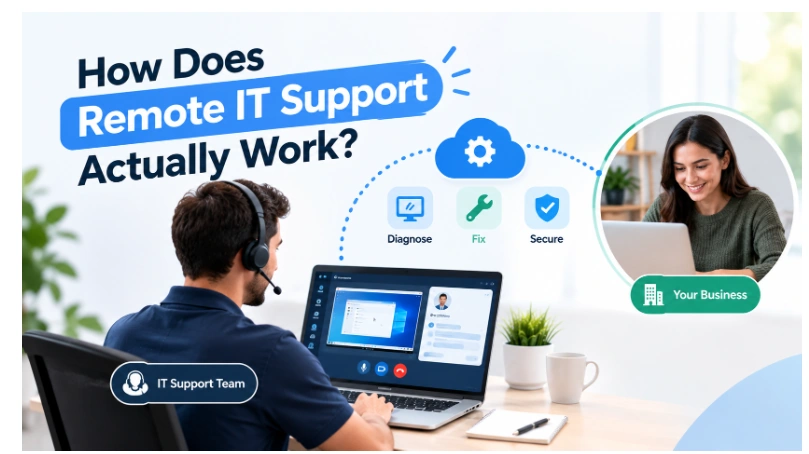
Something goes wrong on your computer, you call for help, and a few minutes later your screen starts moving on its own while someone you can’t see fixes it. For a lot of people, that first experience is a little unsettling, mostly because nobody ever explains what’s actually happening or whether it’s safe to let a stranger take over your screen.
So let’s actually walk through it properly.
The short version
Remote IT support means a technician connects to your device over the internet, with your permission, to diagnose and fix a problem without needing to physically be in front of your computer. It works for the vast majority of everyday IT issues, and it’s usually faster than waiting for someone to drive out to you.
What actually happens, step by step
You report the issue. This usually happens by phone, email or a support ticket, and a decent provider will ask a few questions upfront to understand what’s actually going on before jumping straight to a fix.
You’re asked for permission to connect. This is the part people are often unsure about, but it’s a hard requirement, not a formality. A technician can’t simply access your device whenever they like. You’ll either be sent a secure link to click, or asked to approve a connection request that appears directly on your screen.
The technician connects to your device. Depending on the issue, this might just be viewing your screen so they can guide you through something themselves, or it might mean taking full control so they can fix it directly while you watch what’s happening in real time.
The problem gets diagnosed and fixed. This is where the actual troubleshooting happens, whether that’s reinstalling software, adjusting settings, clearing a fault, or checking what’s actually causing an error you’ve been seeing.
The session ends and access is closed. Once the fix is done, the remote connection is closed completely. A properly run support session doesn’t leave a technician with ongoing access to your device once the job is finished.
The fix gets documented. A good provider records what the issue was and what was done about it, partly so there’s a record if it happens again, and partly so a pattern can be spotted if the same issue keeps coming back.
Is it actually safe to let someone remote into your computer
This is the question people ask us most, and it’s a fair one. A properly run remote support session is permission based at every step. You can see exactly what’s happening on your own screen the entire time, the connection is encrypted, and access ends the moment the session is closed rather than lingering afterward. If a provider is ever vague about how their remote access actually works, that’s worth pushing back on, because it’s a completely reasonable thing to ask about before letting anyone connect. The Australian Cyber Security Centre’s guidance on securing remote access is a useful reference if you want the more technical detail behind what a properly secured session should look like.
The tools actually doing the work
Most managed IT providers don’t wait for something to break before they know about it. Remote monitoring and management software, usually shortened to RMM, quietly watches things like disk space, security patches and system health in the background, which is often how a problem gets caught and fixed before it turns into something you’d have even noticed. Our earlier guide on why RMM matters goes into more detail on how that side of things actually works behind the scenes.
What can and can’t be fixed remotely
Most software issues, settings problems, slow performance, email troubles and security concerns can be resolved entirely remotely, often faster than an onsite visit would take. Physical problems are the obvious exception. A failed hard drive, a broken cable, or a printer that’s jammed still needs someone physically there, and a decent remote support setup will tell you honestly when that’s the case rather than dragging out a remote session that was never going to fix a hardware fault.
A real example of how this plays out day to day
We had a client whose laptop kept disconnecting from Wi-Fi throughout the day, and the assumption going in was that it would need a new wireless card. A technician connected remotely, checked the actual driver and power settings, and found the laptop’s power saving settings were switching the network adapter off to save battery, a setting that’s on by default on a lot of business laptops and rarely gets noticed until it starts causing problems. It was fixed in about ten minutes without anyone leaving their desk, and the client had been prepared to book a hardware replacement that was never actually needed.
That’s fairly typical of what remote support actually looks like day to day. Most fixes are quieter and quicker than people expect once someone can actually see what’s going on.
When remote support isn’t enough
Sometimes a remote session reveals the issue is bigger than expected, or it’s genuinely physical and needs hands on hardware. A good provider will tell you that honestly rather than stretching out a remote session, and should already have a clear path to get someone onsite if that’s what’s actually needed. If your business is weighing up how much of your support should be proactive versus reactive in the first place, our guide on proactive IT support versus reactive IT is worth a read before you commit to either.
How we handle it
We run remote IT support for businesses across Sydney the same way we’d want it run for our own systems, permission based, logged properly, and backed by monitoring that often catches issues before anyone notices them. Have a look at our online IT support page for how we set it up, or get in touch with our team if you’d rather just ask a few questions before deciding.
FAQs
Is it safe to let a technician remotely access my computer? Yes, provided it’s set up properly. A legitimate remote support session requires your permission to start, is fully visible on your own screen the whole time, and access ends completely once the session is over.
What’s the difference between screen sharing and full remote control? Screen sharing lets a technician see your screen so they can talk you through a fix yourself. Full remote control lets them actually operate your device directly, which is faster for more involved issues but still requires your permission to begin.
Can every IT problem be fixed remotely? Most software and configuration issues can be. Physical hardware problems, like a failed component or damaged cable, still need someone onsite, and a good provider will tell you clearly when that’s the case.
How long does a typical remote support session take? It varies a lot depending on the issue, but many everyday problems are resolved in well under half an hour, often faster than waiting for an onsite technician to arrive.
Does the technician still have access to my computer after the session ends? No, not with a properly run remote support setup. Access is closed once the session finishes, and any ongoing monitoring runs through separate, disclosed software rather than leftover remote control.
What happens if the technician can’t fix the issue remotely? A decent provider will say so directly rather than dragging the session out, and should have a clear process for escalating to an onsite visit if that’s genuinely what the problem needs.