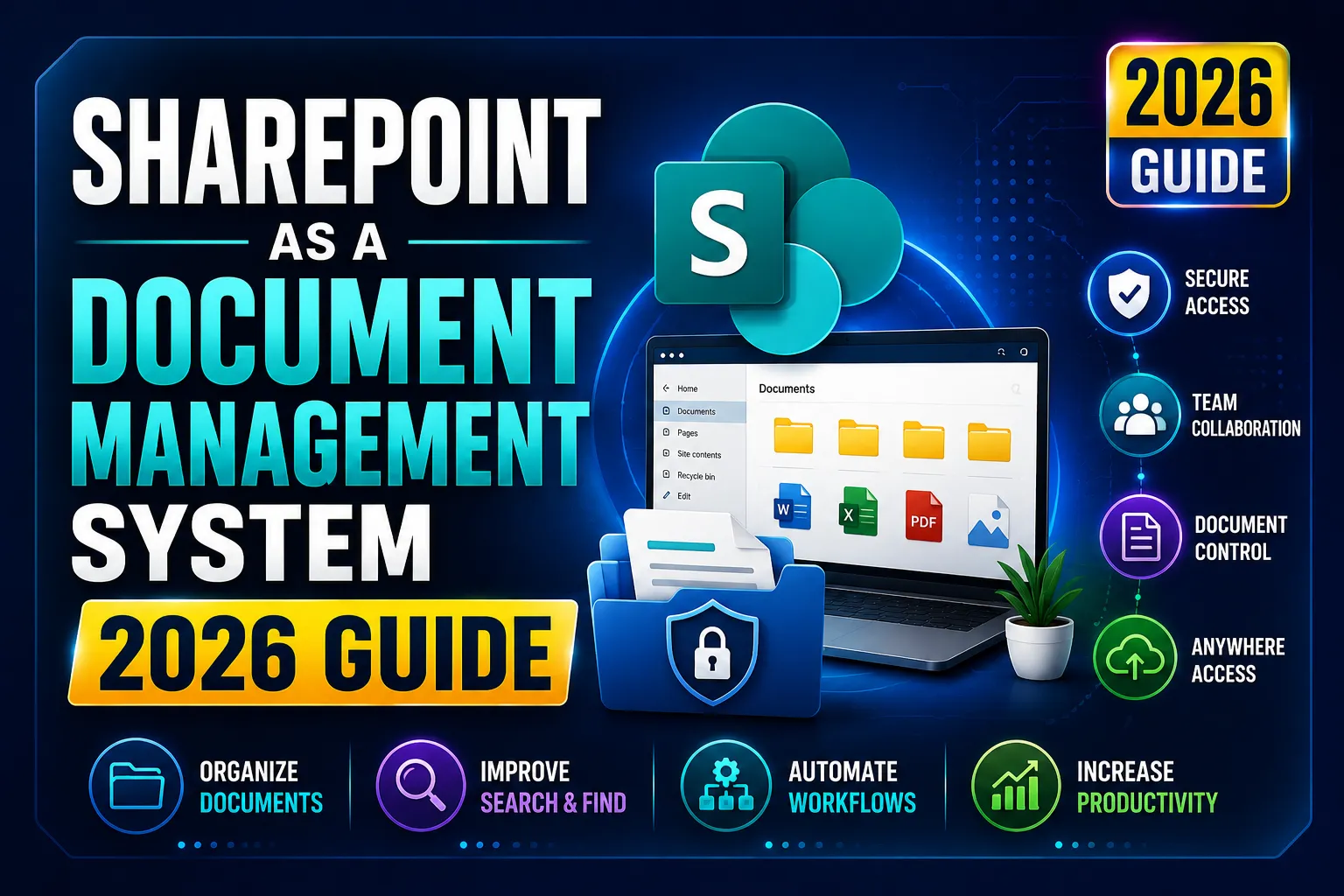
Quick Answer: SharePoint is a full document management system built into Microsoft 365. It replaces shared network drives and scattered email attachments with one organised, searchable, secure location – with automatic version history, controlled permissions, and built-in compliance tools. If you use Microsoft 365, you already have it. You just need to set it up properly.
Key Takeaways
- SharePoint is not just file storage – it is a complete document management system with version control, metadata search, permission controls, approvals, and retention policies built in.
- The most common mistake is treating SharePoint like a network drive – dumping files into folders with no structure. The value comes from metadata, not folders.
- SharePoint controls the full document lifecycle: creation, review, approval, retention, and disposal – all without leaving Microsoft 365.
- Most Australian businesses already have SharePoint – it is included in every Microsoft 365 Business plan at no extra cost.
- Poor document management costs the average worker 2.5 hours per week searching for files they cannot find, according to McKinsey Global Institute research.
- Under APP 11 of the Australian Privacy Act, businesses must destroy or de-identify personal information once it is no longer needed – SharePoint retention labels automate this obligation.
Is SharePoint a Document Management System?
Yes. SharePoint is a full document management system – not just file storage.
Most businesses use it like a network drive: dump files in, organise with folders, share a link. That works. But it misses 80% of what SharePoint actually does.
A proper document management system controls the whole life of a document:
- Create – using templates so every contract, proposal, and policy starts consistently
- Find – using metadata tags and search, not nested folders
- Collaborate – with multiple people editing the same document at the same time
- Approve – with automated approval workflows before a document is finalised
- Secure – with permissions that match each person’s role
- Retain – keeping documents for the legally required period, then disposing of them automatically
SharePoint delivers each of these functions natively, inside Microsoft 365, without any third-party software.
The difference between SharePoint as a file dump and SharePoint as a managed system is entirely in how you configure it.
SharePoint vs What You Are Using Now
SharePoint vs a Network Drive or File Share
What you need | Network drive | SharePoint |
Find a file quickly | Browse nested folders | Search + filter by metadata tag |
See who changed what | Not possible | Full version history with author and timestamp |
Work on a file remotely | Requires VPN | Browser, desktop app, mobile – anywhere |
Control who sees what | Folder permissions (hard to manage) | Role-based permissions per library or item |
Keep records for compliance | Manual | Automated retention labels and records |
Multiple people edit at once | One person locks the file | Real-time co-authoring with no conflicts |
The bottom line: A network drive stores files. SharePoint manages them.
SharePoint vs OneDrive vs Teams
This is the most common source of confusion for Microsoft 365 users.
Tool | Best for | Note |
OneDrive | Personal drafts and work in progress | Move to SharePoint once a file is shared or finalised |
SharePoint | Shared, governed team and company documents | The system of record for managed files |
Teams | Day-to-day collaboration and communication | Files in a Teams channel are stored in SharePoint automatically |
The key insight: Teams and OneDrive are front doors. SharePoint is the building behind them. If your Teams channels are messy, it is because your SharePoint is messy – fixing SharePoint fixes Teams.
How to Set Up SharePoint as a Document Management System
This is the order that works. Do not skip steps – each one builds on the previous.
Step 1: Choose the Right Site Type

Team sites are for departments and projects where people actively collaborate on documents together.
Communication sites are for one-to-many content – company policies, announcements, and reference documents that most people read but do not edit.
Practical advice: Create a separate site per department or major function – Finance, HR, Operations, Projects. One giant company-wide site gets cluttered fast and makes permissions messy. When you have multiple sites, connect them with a hub site so they share navigation and search while keeping their own permissions.
Assign a named owner to each site before you build anything. An ownerless site is a governance problem waiting to happen.
Step 2: Design Your Document Libraries
A document library is the folder that holds your files – but unlike a Windows folder, it comes with version history, metadata columns, and views.
The rule: Separate libraries by department or document type. Do not put everything in one library.
Good library structure for an accounting firm:
- Client Files (one folder per client, limited access)
- Templates (proposals, engagement letters, reports)
- Internal Policies
- Compliance Documents
Within each library, enable version history from the start. Plan the column names and views before you start moving files in. Changing the structure later is painful.
The 5,000-item limit: SharePoint library views start to fail once they exceed 5,000 items – a real constraint for large organisations. The fix is indexed columns and filtered views. Planning this upfront avoids hitting the wall later.
Step 3: Use Metadata Instead of Deep Folders
This is the biggest upgrade you get from moving to SharePoint – and the most underused.
What is metadata? It is tags you apply to each file – columns like Department, Document Type, Client, Status, and Review Date.
Why it beats folders: A contract buried in Finance → Clients → Melbourne → ABC Co → 2025 can only be found if you know the exact folder path. The same contract tagged with metadata can be found instantly by searching “ABC Co” or filtering by “Contract” and “2025.”
One file can appear in multiple filtered views without being copied. Impossible with folders.
In plain English: Metadata lets you find a file from any angle. Folders only let you find it one way.
How to set it up:
- In your library, click Add column in the column header
- Add columns relevant to your documents: Document Type, Client/Project, Status, Review Date, Owner
- Make 2–3 columns required – not all of them, or people will not fill them in
- Create views that filter by these columns – “All active contracts,” “Due for review this month,” “My documents”
Microsoft’s SharePoint AI autofill columns (currently in preview) can analyse documents and suggest metadata values automatically – reducing the manual tagging burden significantly.
Step 4: Add Document Templates and Content Types
Templates ensure every contract looks like a contract, every proposal follows the right structure, and every policy includes the required fields – without anyone having to remember.
Content types pair a template with a set of metadata columns. When a staff member creates a “New Contract,” they get the contract template and the right metadata fields automatically.
How to create a template:
- Create the master document in Word/Excel/PowerPoint
- Upload it to a dedicated Templates library
- In Site Settings → Site Content Types → Create a new content type
- Add your metadata columns and link the template
- Add the content type to the relevant libraries
Store all master templates in one controlled library. Review them at least annually – outdated templates with old branding or incorrect clauses are a practical risk.
Step 5: Set Permissions the Right Way
Permission mistakes are the most common reason SharePoint becomes a security problem.
The right model:
Role | What they can do |
Owners | Full control – manage settings, permissions, content |
Members | Edit – add, edit, delete documents |
Visitors | Read only – view and download, no editing |
Assign these at the library level, not the file level. File-level permissions quickly become impossible to manage and are a common way sensitive documents end up accessible to people who should not see them.
External sharing: Set it deliberately per site – not by tenant default. Client-facing project sites can allow guest access. HR and finance libraries should have no external sharing at all.
Permission sprawl – where every file has its own unique sharing settings – is the main reason sensitive documents surface in Copilot responses where they should not appear. Clean permissions are essential before deploying any AI tools.
Audit permissions regularly. When someone changes roles or leaves the organisation, their document access must be updated. This connects directly to the identity lifecycle management process – when offboarding is automated, SharePoint access is revoked automatically through group membership.
Step 6: Enable Version Control and Co-authoring
Version control means every time someone saves a document, SharePoint saves a new version. You can see the full history – who changed what and when – and restore any previous version with one click.
This ends the “final_v3_revised_ACTUAL_FINAL.docx” problem permanently.
How to enable it:
In the library → Settings → Versioning Settings → set “Create a version each time you edit” to Yes
Set the major version limit. By default, SharePoint keeps up to 500 versions of each file – which adds up fast for frequently saved documents. Switch the library to automatic version limits (available in SharePoint Online) to trim old versions by age rather than count.
Co-authoring lets multiple people edit the same document simultaneously – no more emailing a file around, waiting for it to come back, and manually merging changes.
It works automatically in SharePoint for Word, Excel, and PowerPoint – nothing to configure. Just open the document and start editing. The key habit to reinforce: edit in SharePoint directly, do not download, edit locally, and re-upload. The download-and-re-upload habit is what recreates version chaos.
Step 7: Set Retention Policies and Governance
Retention policies automatically keep documents for a set period and then delete them (or mark them as records that cannot be changed).
This is not just good housekeeping. It is a legal obligation for Australian businesses.
The Australian Privacy Act (APP 11) requires organisations to destroy or de-identify personal information once it is no longer needed – unless an Australian law requires keeping it. Healthcare records, financial records, and NDIS documentation all have minimum retention periods that pull in the other direction.
SharePoint retention labels, configured in Microsoft Purview (compliance.microsoft.com), let you:
- Keep all HR documents for 7 years, then delete
- Keep contracts for 10 years, then prompt for review
- Keep client records for the period required by your industry regulation
- Mark specific documents as records that cannot be edited or deleted
In the Microsoft Purview portal:
- Go to Data lifecycle management → Retention labels → Create a label
- Set the retention period and action (delete, review, or record)
- Publish the label to SharePoint libraries
- Apply labels automatically based on document type or metadata
For businesses managing health information, NDIS records, or significant volumes of personal information, sensitivity labels and DLP policies should also be applied. Our Microsoft 365 security guide covers these in detail.
What About Copilot and SharePoint Documents?
If your organisation uses or is planning to use Microsoft 365 Copilot, your SharePoint permissions matter even more than before.
Copilot can only surface documents the user already has permission to access – it does not create a new permission layer.
This means: if HR documents are shared too broadly, Copilot will happily summarise them for anyone who asks. If board papers are accessible to the whole company, Copilot will reference them in any context.
Clean permissions and good metadata are what make Copilot safe and accurate – not a setting you turn on at the Copilot level.
Do a permissions audit before enabling Copilot. Restrict any library where files should not appear in organisation-wide AI queries using Restricted Content Discovery in the SharePoint Admin Centre.
SharePoint vs Dedicated DMS Software (M-Files, DocuWare)
Some businesses wonder whether they need dedicated document management software instead of SharePoint.
SharePoint | M-Files / DocuWare | |
Cost | Included in Microsoft 365 | Separate licence (~$30–80/user/month) |
Setup effort | Moderate – needs proper configuration | High – specialist implementation required |
Microsoft 365 integration | Native – Word, Teams, Outlook, Copilot | Via connectors – less seamless |
Best for | SMBs and mid-market with Microsoft 365 | Engineering drawing control, ISO 9001 QMS, highly regulated industries |
Compliance tools | Purview retention labels, DLP | Industry-specific workflow engines |
For most Australian SMBs, SharePoint covers libraries, metadata, version control, permissions, retention and approval workflows – which is what the majority of organisations need. Dedicated DMS software adds cost and complexity for capabilities most businesses will never use.
Common Reasons SharePoint Document Management Fails
These are the patterns that consistently cause SharePoint to be abandoned.
Recreating the network drive. Moving folders from a file share into SharePoint without any metadata or structure. The problem moves, it does not go away.
Too many sites. Every new Teams channel creates a SharePoint site. Within a year, nobody can find anything and search returns results from 40 different sites. Plan the site structure before you build.
No metadata. Without metadata columns, search is limited to file names. The value of SharePoint over a file share is metadata search. Without it, you have an expensive file share.
Permission sprawl. Sharing individual files with custom permissions until nobody knows who has access to what. Manage permissions at the library level, not the file level.
No one owns it. A SharePoint library without a named owner accumulates duplicates, outdated files, and orphaned content within months. Every library needs a named person responsible for keeping it tidy.
No adoption plan. The technology works but if staff are not trained and shown the benefit, they keep emailing attachments. Training is not optional.
A Real Australian Example
A professional services firm in Sydney came to CodeHyper with a common problem: 15 staff were sharing a single set of login credentials for a shared network drive, there was no version history, and when a staff member left, the IT team had no idea which files they had accessed or changed.
We set up a SharePoint document management system over four weeks:
- Three separate site collections: Client Files, Internal Operations, and Templates
- Metadata columns: Client Name, Document Type, Status, Review Date, Responsible Partner
- Permission model: Owners (partners), Members (senior staff), Visitors (support staff) – with client files restricted to the partner assigned to each client
- Retention labels applied via Purview: 7 years for client engagement files (meeting tax law requirements), 3 years for internal operational documents
- OneDrive sync set up on all devices via Intune for offline access
- Version history enabled on all libraries
The outcome after 90 days: Staff reported finding files in seconds rather than minutes. A departing employee’s access was revoked through Entra ID offboarding – including SharePoint – within minutes of their last day. The firm’s cyber insurer asked for evidence of document access controls at renewal; the SharePoint permission audit report provided it.
If you want to set up SharePoint document management for your Australian business, contact our team for a no-obligation assessment.
SharePoint DMS Setup Checklist
Use this to assess where you are and what to do next.
Structure:
- ☐ Sites separated by department or function (not one giant company site)
- ☐ Hub site connecting related sites for shared navigation and search
- ☐ Named owner assigned to every site
- ☐ Libraries separated by document type or team
Metadata and findability:
- ☐ Metadata columns added to each library (Document Type, Status, Date, Owner minimum)
- ☐ Views created: “My documents,” “Due for review,” “Pending approval”
- ☐ Library views tested – no single view returning more than 5,000 items
Templates and consistency:
- ☐ Master templates stored in a controlled library
- ☐ Content types created for repeat documents (contracts, proposals, policies)
- ☐ Template review date set (at least annually)
Permissions:
- ☐ Owners, Members, Visitors model applied at library level
- ☐ External sharing configured per site (not left at tenant default)
- ☐ File-level unique permissions removed where possible
- ☐ Permission audit scheduled quarterly
Version control and collaboration:
- ☐ Version history enabled on all libraries
- ☐ Automatic version limits configured (not the 500-version default)
- ☐ Co-authoring confirmed working – staff editing in browser, not downloading
- ☐ OneDrive sync set up on managed devices
Retention and compliance:
- ☐ Retention labels created in Purview for each document category
- ☐ Retention periods mapped to Australian legal obligations (Privacy Act, relevant industry law)
- ☐ Sensitive libraries protected with DLP and sensitivity labels
Related Reading
- SharePoint – Overview of SharePoint for Australian businesses
- What Is Microsoft SharePoint – SharePoint explained in plain English
- SharePoint Library Guide – How to set up document libraries correctly
- SharePoint vs Teams vs OneDrive – Choosing the right tool for each type of content
- Microsoft Teams Workflow Automation – Automating document approval workflows with Power Automate
- Microsoft 365 Security – DLP and sensitivity labels for SharePoint documents
- Identity Lifecycle Management Process – Automating SharePoint access as part of onboarding and offboarding
- OneDrive Security Best Practices – Securing the files that sync between SharePoint and OneDrive
Frequently Asked Questions
What is SharePoint document management?
SharePoint document management is the practice of using Microsoft SharePoint as the central system for storing, organising, finding, securing, and governing business documents. It replaces network drives and scattered email attachments with one searchable, version-controlled, permission-managed system. SharePoint provides automatic version history (so every change is tracked), metadata tagging (so documents are findable by any attribute), role-based permissions (so only the right people access the right files), and retention policies (so documents are kept for the legally required period and then automatically disposed of).
Is SharePoint a document management system?
Yes. SharePoint is a fully featured document management system built into Microsoft 365. It handles the complete document lifecycle – creation using templates, collaboration with co-authoring, approval workflows, secure access controls, version history, and automated retention and disposal. The difference between SharePoint as a basic file store and SharePoint as a managed DMS is in how it is configured. Without structure, metadata, and governance, SharePoint becomes an expensive file share. With them, it replaces the need for separate DMS software costing $30–80 per user per month.
What is the difference between SharePoint, OneDrive, and Teams for document management?
OneDrive is personal cloud storage for individual work in progress – your drafts and files you have not yet shared. SharePoint is the shared, governed system where team and company documents live once they are ready to be used by others. Microsoft Teams stores its channel files in SharePoint automatically – your Teams channel documents are SharePoint documents. The practical rule: start a document in OneDrive, move it to SharePoint when it needs to be shared or governed. For document management, SharePoint is the system of record.
How do I set up SharePoint as a document management system?
Follow these steps in order: (1) choose the right site type for each team or department, (2) design focused document libraries separated by document type, (3) add metadata columns instead of deep folder structures, (4) create document templates and content types, (5) set permissions at the library level using Owners/Members/Visitors roles, (6) enable version history and co-authoring, (7) configure retention labels in Microsoft Purview for each document category. The first three steps – site structure, library design, and metadata – are where most of the value and most of the mistakes happen.
What are metadata columns in SharePoint and why do they matter?
Metadata columns are tags you apply to documents in SharePoint – fields like Document Type, Department, Client, Status, and Review Date. They replace deep folder structures as the primary way to organise and find files. Instead of a contract buried six folders deep, you tag it with its client name, document type, and status – then filter the library view to find it instantly from any angle. Metadata is also what makes Microsoft Search and Microsoft 365 Copilot return accurate, relevant results. Without metadata, searching SharePoint returns poor results and Copilot answers are unreliable.
How does SharePoint retention work for Australian businesses?
SharePoint retention is configured through Microsoft Purview – you create retention labels that define how long a document type should be kept and what happens when that period ends (delete, trigger a review, or declare it a record). Under the Australian Privacy Act APP 11, businesses must destroy or de-identify personal information once it is no longer needed. Australian tax law, healthcare regulations, and NDIS rules all require minimum retention periods for specific record types. Retention labels allow you to enforce both obligations automatically – keeping documents for the required minimum period and deleting them when that period expires, without manual intervention.
Does SharePoint replace M-Files or DocuWare for document management?
For most Australian SMBs and mid-market businesses, yes. SharePoint covers the core document management requirements: libraries, metadata, version control, permissions, retention, and approval workflows via Power Automate. Dedicated DMS platforms like M-Files and DocuWare add engineering drawing control, ISO 9001 quality management workflows, and highly specialised industry compliance tools – capabilities that most businesses will never need. At $30–80 per user per month for specialist DMS software versus $0 extra for SharePoint (already included in Microsoft 365), SharePoint is the practical default for the majority of Australian businesses.
This guide is maintained by the CodeHyper technical team. For help setting up SharePoint as a document management system for your Australian business, contact our team or visit codehyper.com.au.