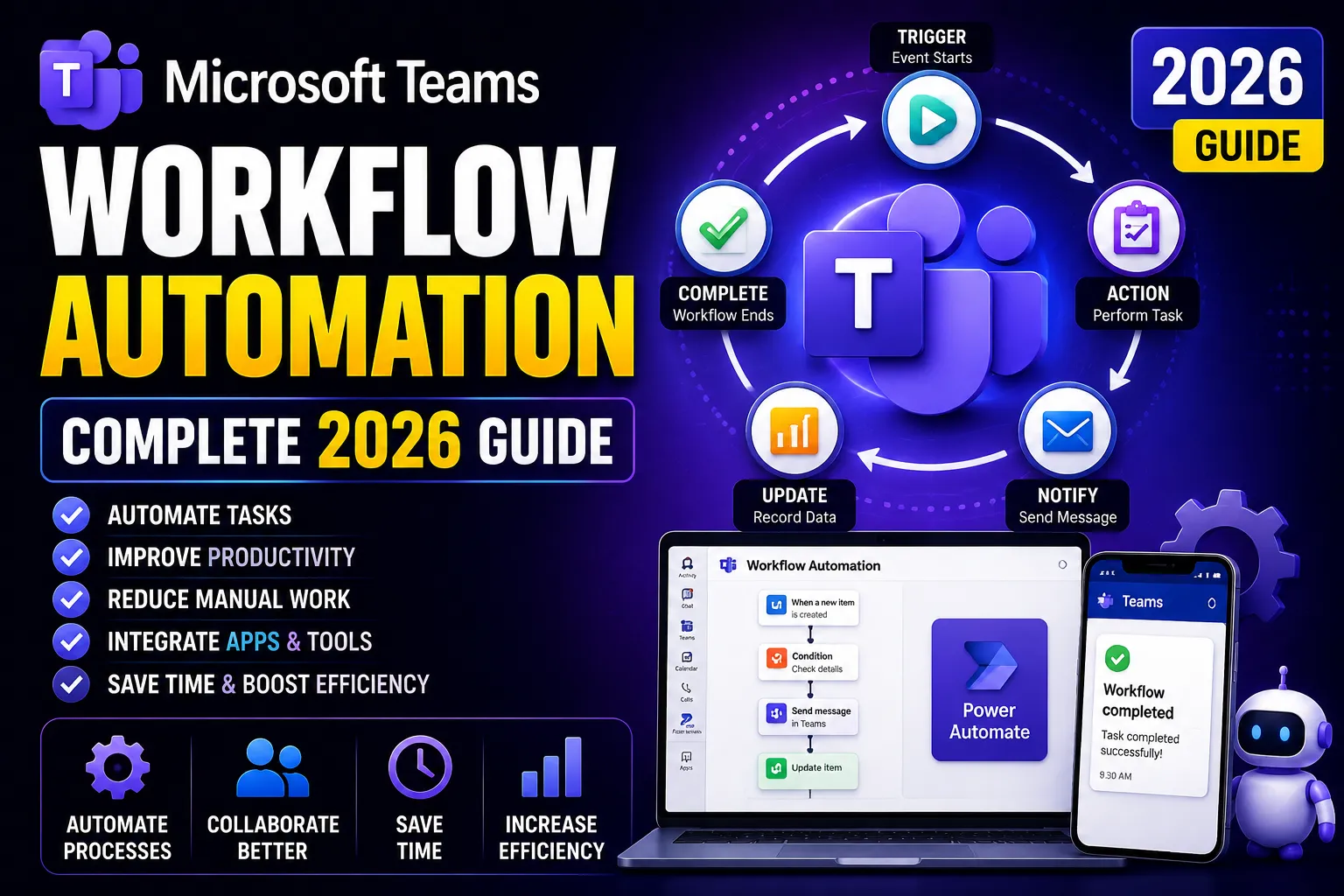
Quick Answer: Microsoft Teams workflow automation uses Power Automate (formerly Flow) to connect Teams with other apps – so repetitive tasks like approvals, notifications, task creation, and status updates happen automatically. You set the rule once. Teams handles it from then on. No coding required.
Key Takeaways
- Power Automate is the built-in automation engine for Microsoft Teams – it is already included in most Microsoft 365 subscriptions and does not require coding.
- <cite index=”12-1″>Automating workflows in Teams eliminates repetitive tasks, reduces human error, and ensures consistent processes</cite> – saving the average office worker 3 hours per week according to Microsoft’s own research.
- The five highest-impact Teams automations are: approval workflows, new client onboarding, task creation from messages, form submission alerts, and meeting follow-up actions.
- Copilot agents (new in 2026) take automation further – they can monitor a Teams channel and act automatically based on what is discussed, without a human triggering the flow.
- All basic automations are included in Microsoft 365 Business Standard and Premium at no extra cost.
- You can build your first Teams automation in under 10 minutes using built-in templates.
What Is Microsoft Teams Workflow Automation?
Most businesses use Teams for chat and meetings. But Teams can also be the central hub where work gets done automatically – without anyone manually moving information from one place to another.
Teams workflow automation means: when something happens in one place, something else happens automatically somewhere else.
For example:
- A client submits a form → a Teams notification is sent to the account manager → a task is created in Planner → the client receives a confirmation email. All without anyone pressing a button.
The tool that makes this happen is Microsoft Power Automate – a low-code automation platform built into Microsoft 365.
Power Automate connects Teams to hundreds of other apps: Outlook, SharePoint, Excel, Planner, Xero, Salesforce, HubSpot, ServiceNow, Jira, and many more. You build a “flow” – a set of rules that says “when X happens, do Y.”
No coding. No IT ticket. No waiting.
Why Automate Your Teams Workflows?
Manual processes have a cost most businesses do not measure.
When someone copies data from a form into a spreadsheet, sends a notification email, creates a Planner task, and updates a SharePoint list – that takes 8–12 minutes. Done 10 times a day across a team of 10 people, it is over 13 hours of productive time lost every week to admin that a machine could handle.
Beyond time, manual processes create errors. A task not created. A notification not sent. An approval left sitting in someone’s inbox for three days. Automation removes the human-error layer from routine processes.
<cite index=”12-1″>Forrester Research found that businesses using Power Automate saved an average of 46 minutes per user per day on manual tasks</cite>, according to a commissioned Forrester Total Economic Impact study.
For Australian businesses – where staffing costs are high and finding skilled people is competitive – automation is a practical cost management tool, not just a productivity nicety.
How Power Automate Works With Teams
Think of Power Automate as a set of rules you define once.
Every rule has three parts:
- Trigger – what starts the automation Examples: a Teams message is posted, a form is submitted, a file is added to SharePoint, a calendar event is created, someone sends an email
- Condition (optional) – a filter on when to run Examples: only if the message is in a specific channel, only if the form response includes a specific answer, only if the file is a PDF
- Action – what happens automatically Examples: send a Teams notification, create a Planner task, add a row to an Excel spreadsheet, send an email, update a SharePoint list, start an approval process
You build these flows at make.powerautomate.com – or directly inside Teams from the Power Automate app in the Teams App Store.
7 Real Microsoft Teams Automation Examples (With How They Work)
These are the most impactful automations Australian businesses set up. Each one is buildable in Power Automate without any coding.
Automation 1: Approval Workflows
The problem it solves: Purchase approvals, leave requests, contract sign-offs, and expense submissions sit in inboxes for days. Approvers forget. The person waiting has no visibility.
How the automation works:
- Trigger: A staff member submits a Microsoft Form (or fills in a SharePoint list)
- Action 1: Power Automate sends an Approval request directly into the approver’s Teams channel – with Accept/Reject buttons they can click without leaving Teams
- Action 2: When the approver decides, the submitter gets an automatic notification with the outcome
- Action 3: The result is logged to a SharePoint list for record keeping
Result: Approvals that took 3 days average 4 hours. The audit trail is automatic. No chasing required.
How to build it: In Power Automate → Search “Start an approval when a Microsoft Forms response is submitted” → fill in the form ID and approver – done.
Automation 2: New Client or New Staff Onboarding
The problem it solves: Onboarding a new client or staff member involves the same 12 steps every time. Someone always forgets one. Different people do the steps in different orders.
How the automation works:
- Trigger: A new record is added to a SharePoint list (or a form is submitted)
- Action 1: A new private Teams channel is created for the client or new staff member
- Action 2: The right people are added to that channel automatically
- Action 3: A Planner task list with every onboarding step is created and assigned
- Action 4: A welcome message is posted in the channel
- Action 5: A calendar invite is sent for the onboarding meeting
Result: Every onboarding is identical. Nothing gets skipped. Staff spend time doing the work, not setting up the work.
Automation 3: Task Creation From a Teams Message
The problem it solves: Important actions discussed in Teams chats disappear. Someone says “can you follow up on this?” in a message and it never happens because no one created a formal task.
How the automation works:
- Trigger: A user reacts to a Teams message with a specific emoji (e.g., ✅ or 📋)
- Action: Power Automate automatically creates a task in Microsoft Planner assigned to the person who posted the message, with the message content as the task description and a due date 48 hours out
Result: Any action item mentioned in Teams becomes a tracked task with one click. Nothing falls through the cracks.
How to build it: In Teams → right-click any message → More actions → Create task (this is a built-in Teams feature, no Power Automate needed for the basic version).
Automation 4: Form Submissions Directly Into Teams
The problem it solves: You have a Microsoft Form for client enquiries, staff feedback, incident reporting, or IT support requests. Responses sit in the Forms portal and no one sees them quickly.
How the automation works:
- Trigger: A Microsoft Forms response is submitted
- Action 1: Power Automate posts the response content as a formatted message in a designated Teams channel
- Action 2: A Planner task is created with the response details assigned to the right person
- Action 3: The submitter gets an automatic acknowledgement email
Result: Your team sees every submission in Teams within seconds of it being submitted. Response time drops from hours to minutes.
Automation 5: SharePoint File Alerts in Teams
The problem it solves: Important documents get added to SharePoint but the team does not know. Or a critical file is modified and no one is notified until a meeting three days later.
How the automation works:
- Trigger: A file is added or modified in a specific SharePoint library
- Condition: Only if the file type is PDF (or Word, or matches a specific naming pattern)
- Action: Power Automate posts a message in the relevant Teams channel: “New document added: [file name] – by [person’s name]. [Link to file]”
Result: The team is notified in Teams – where they already are – instead of having to check SharePoint manually.
Automation 6: Scheduled Reports Posted to Teams
The problem it solves: Someone manually pulls a report every Monday morning from Excel or a business system and pastes it into a Teams channel. It is the same report, every week, done manually.
How the automation works:
- Trigger: Scheduled – every Monday at 8am
- Action 1: Power Automate pulls data from Excel (or a SQL database, or Dataverse)
- Action 2: Formats the data as a table
- Action 3: Posts it as a message in the relevant Teams channel automatically
Result: The report appears in Teams every Monday morning without anyone touching it. The person who used to do this manually gets their Monday mornings back.
Automation 7: Meeting Follow-Up Task Creation
The problem it solves: Meetings end. Actions are discussed. Nobody writes them down consistently. Two weeks later, nothing has happened.
How the automation works:
- Trigger: A Teams meeting ends
- Action: If Copilot meeting recap is enabled, Power Automate reads the action items from the recap summary and creates individual Planner tasks assigned to the named person for each action
Result: Every meeting automatically produces assigned, tracked tasks. No meeting minutes to write. No actions to chase.
This automation uses the Copilot Teams meeting recap feature – available in Microsoft 365 Business Standard and Premium.
Copilot Agents: The Next Level of Teams Automation
In 2026, Microsoft introduced Copilot agents – AI-powered automation that goes beyond simple if-then rules.
A Copilot agent monitors a Teams channel, reads what is being discussed, understands context, and takes action automatically – without anyone triggering a flow.
Examples of what Copilot agents can do:
- Monitor a customer support channel and automatically draft a response suggestion for the support agent to review and send
- Watch a project channel and flag when a deadline mentioned in conversation has not had a corresponding task created
- Read a supplier quote shared in a channel and automatically pull the key numbers into a tracking spreadsheet
- Detect when a contract approval is being discussed and proactively start the approval workflow
Copilot agents are configured in Microsoft Copilot Studio – a low-code tool for building custom AI agents. Basic agents are included in Microsoft 365 Business Premium. More complex agents with higher usage limits require a Copilot Studio licensing add-on.
This is the evolution beyond Power Automate flows. Flows run on explicit triggers. Agents understand context and act intelligently.
Getting Started: Your First Teams Automation in 10 Minutes
You do not need a developer. You do not need a consultant for your first automation.
Here is the fastest path to your first working flow:
Step 1: Open Microsoft Teams → Click the Apps icon in the left sidebar → Search “Power Automate” → Add the app
Step 2: Inside the Power Automate app in Teams → Click “Create” → Browse templates
Step 3: Search for a template that matches your first automation. Good starter templates:
- “Post a message to Teams when a form is submitted” – instant win for any team with a Microsoft Form
- “Create a Planner task when a message is flagged” – solves the “lost action items” problem immediately
- “Send a Teams notification when a SharePoint file is added” – great for document management
Step 4: Select a template → Sign in to each connector (Teams, Forms, Planner) → Map the fields → Save
Step 5: Test it. Submit a test form entry (or add a test file to SharePoint) and confirm the automation fires correctly.
Your first working automation typically takes 10–20 minutes. The second one takes 5 minutes. After three or four flows, the logic becomes intuitive.
Power Automate Licence – What Is Included in Your Microsoft 365 Plan?
This is the question most businesses do not know the answer to until they start building.
M365 Plan | Power Automate Included | Flow Runs Per Month | Premium Connectors |
Business Basic | Power Automate (seeded) | 6,000 | No |
Business Standard | Power Automate (seeded) | 6,000 | No |
Business Premium | Power Automate (seeded) | 6,000 | No |
Power Automate (standalone) | Full | 40,000+ | Yes |
What this means: Standard Microsoft 365 plans include enough Power Automate capacity for most SMB workflow automations. If your automations connect to premium connectors (SAP, Dynamics 365, Dataverse, some CRMs) or run very high volumes, a standalone Power Automate licence (~AU$19.90/user/month) is needed.
For most Australian businesses getting started, the included licence is more than sufficient.
Teams Automation and Data Security: What to Watch
Automation is powerful – but it moves data automatically, which means you need to think about where that data goes.
Things to check before deploying automations:
- Does the flow share data with external services? If your automation sends data to a third-party app (Salesforce, Mailchimp, Xero), check that service’s data residency and security settings.
- Does the flow include personal information? If your automation processes customer names, email addresses, or financial data, it must comply with the Australian Privacy Act 1988. Ensure data is only flowing to approved, secure destinations.
- Who can create flows? By default, any Microsoft 365 user can create Power Automate flows. Consider limiting flow creation to authorised staff using Power Platform data loss prevention (DLP) policies in the Power Platform Admin Centre.
- Are connector permissions appropriate? When a flow connects to SharePoint or Teams, it runs with the permissions of the account that built it. If a manager builds a flow, it can access everything that manager can access – including data junior staff should not see.
For the full picture of how automated tools intersect with data security, see our shadow IT risks guide – many unapproved automation tools create the same data governance gaps as unapproved apps.
Teams Workflow Automation Checklist
Use this to plan and govern your automation programme.
Before you build:
- ☐ Identify the 3 most time-consuming manual processes your team does repeatedly
- ☐ Check whether a Power Automate template already exists for each one
- ☐ Confirm what data the flow will access and where it will be sent
- ☐ Verify the flow does not connect to unapproved external services
When you build:
- ☐ Use a service account or shared account for flows that should not depend on one person’s credentials
- ☐ Add error handling – what should the flow do if a step fails?
- ☐ Document the flow: what it does, who owns it, when it was created
- ☐ Test with real data before deploying to the full team
After deployment:
- ☐ Monitor flow run history monthly – check for failed runs
- ☐ Review the flow if the connected app or process changes
- ☐ Assign an owner – who is responsible if this flow stops working?
- ☐ Include flows in your offboarding process – flows built by a departing employee may break when their account is deactivated
Related Reading
- Microsoft Teams – The Teams platform your automations run on
- Microsoft Teams Security Best Practices – Securing Teams before you add automations and third-party connectors
- Microsoft 365 Features Explained – Understanding the full M365 platform that powers Teams automation
- SharePoint Library Guide – Using SharePoint as the data source for Teams automations
- What Is Microsoft Copilot – Copilot agents that extend Teams automation with AI
- Shadow IT Risks – Data governance risks when automation tools are deployed without oversight
- IT Documentation Best Practices – Documenting your automations so they survive staff changes
Frequently Asked Questions
What is Microsoft Teams workflow automation?
Microsoft Teams workflow automation uses Microsoft Power Automate to connect Teams with other apps and services, so repetitive tasks happen automatically based on defined rules. When a trigger event occurs – a form submitted, a file uploaded, a message posted – Power Automate runs a sequence of actions: sending a notification, creating a task, updating a spreadsheet, starting an approval. The result is that manual, multi-step processes happen instantly and consistently, without human intervention.
What tool do I use to automate workflows in Microsoft Teams?
The primary tool is Microsoft Power Automate (formerly Microsoft Flow), which is included in all Microsoft 365 business plans. It connects Teams to hundreds of apps – Outlook, SharePoint, Planner, Excel, and third-party services like Salesforce, Xero, and Jira – using pre-built connectors. For more advanced AI-driven automation in 2026, Copilot Studio allows you to build Copilot agents that monitor Teams channels and act intelligently based on context, not just explicit triggers.
Do I need to know how to code to automate Teams workflows?
No. Power Automate is a low-code, no-code platform. You build automations by selecting triggers, conditions, and actions from menus and filling in fields – no programming knowledge required. Microsoft provides hundreds of pre-built templates for common scenarios like approval workflows, form-to-task creation, and SharePoint file alerts. Most first-time users build a working automation within 10–20 minutes using a template as a starting point.
What are the most useful Microsoft Teams automation examples?
The five most impactful Teams automations for Australian businesses are: approval workflows (route requests to approvers in Teams and log the outcomes automatically), new client or staff onboarding (create channels, tasks, and welcome messages automatically), task creation from Teams messages (convert a flagged Teams message into a Planner task instantly), form submission alerts (post Microsoft Forms responses directly into a Teams channel), and SharePoint file notifications (alert the team in Teams when a new document is added). Each of these is buildable using Power Automate templates without coding.
Is Power Automate included in Microsoft 365?
Yes. A version of Power Automate is included in all Microsoft 365 business plans (Basic, Standard, and Premium) at no additional cost. The included version supports 6,000 flow runs per month and standard connectors to Microsoft services and many common third-party apps. Premium connectors (for SAP, Dynamics 365, and some CRMs) and higher run volumes require a standalone Power Automate licence (approximately AU$19.90/user/month). For most Australian SMBs getting started with Teams automation, the included licence is sufficient.
What are Copilot agents and how do they relate to Teams automation?
Copilot agents are AI-powered automation introduced in Microsoft 365 in 2026. Unlike Power Automate flows, which run on explicit triggers (if this happens, do that), Copilot agents monitor a Teams channel, understand the context of conversations, and act intelligently – drafting responses, creating tasks from discussions, flagging when an action has not been taken. They are built in Microsoft Copilot Studio and represent the next evolution beyond rule-based automation. Basic Copilot agents are available in Microsoft 365 Business Premium; more complex agents with higher usage limits require a Copilot Studio add-on licence.
Are there any security risks with Teams workflow automation?
Yes – but they are manageable. The main risks are: flows that share data with unapproved external services (a data governance concern under the Privacy Act), flows built with one person’s credentials that access sensitive data (if that person leaves, the flow may break or expose unintended data), and flows created by staff without IT oversight (a form of shadow IT). Best practices include: limit who can create flows using Power Platform DLP policies, use service accounts for enterprise flows, document every flow with an owner, and include active flows in your offboarding checklist when staff leave.
This guide is maintained by the CodeHyper technical team. For help setting up Microsoft Teams workflow automation or a Microsoft 365 productivity consultation, contact our team or visit codehyper.com.au.