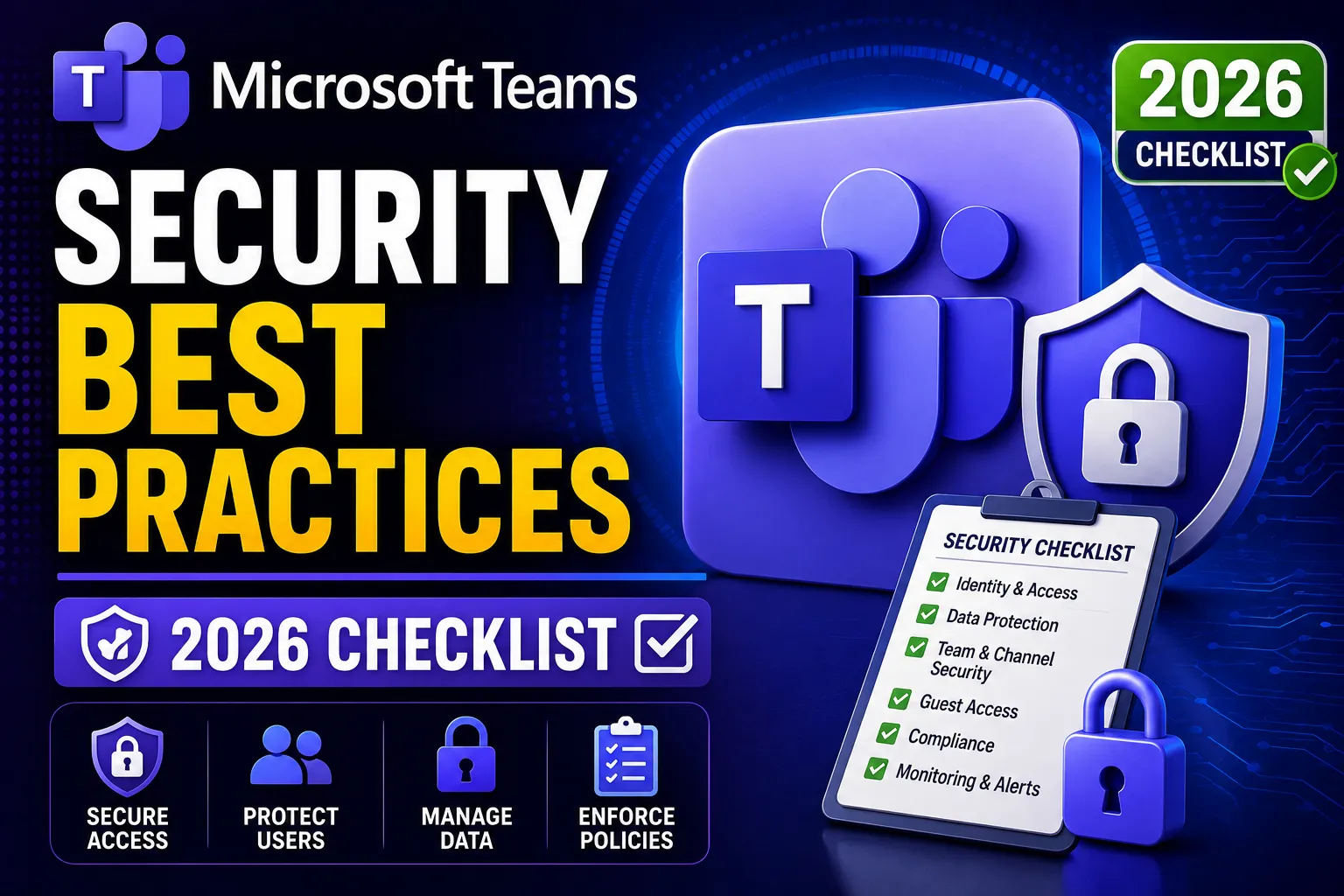
Quick Answer: The most important Microsoft Teams security best practices are: restrict guest access to what is needed, enforce MFA via Conditional Access, turn on Safe Links and Safe Attachments for Teams, configure DLP policies to block sensitive data leaving the organisation, and audit your Teams admin centre settings quarterly. This guide explains each one in plain English.
Key Takeaways
- Teams is the most widely used business collaboration platform in Australia – which makes it a prime target for attackers.
- Attackers now target Teams directly through phishing links in chat messages, malicious file shares, and external user impersonation – Teams is no longer just a productivity tool, it is an attack surface.
- Guest access is the #1 misconfiguration – Teams allows external people into your channels by default, but most businesses never review who has been invited.
- Microsoft Defender for Office 365 (included in Business Premium) extends Safe Links and Safe Attachments protection into Teams – but it must be turned on separately.
- Every security setting in this guide is configurable in the Microsoft Teams Admin Centre and Microsoft 365 Defender portal – no extra cost for Business Premium subscribers.
- Fixing Teams security does not require any new software. Everything you need is already in your subscription.
Why Microsoft Teams Security Matters in 2026
Most businesses treat Teams as a chat tool. Attackers treat it as a door into your organisation.
Think about what lives in Teams. Client files. Financial documents. Internal discussions. Contracts. HR conversations. Password resets happening in chat. The assumption that Teams is “just messaging” is exactly what attackers rely on.
Microsoft Teams has over 320 million active users globally – which makes it one of the highest-value targets for cybercriminals seeking to compromise business environments.
The attacks are real and increasing:
- Attackers send phishing links inside Teams messages that bypass email filters entirely
- Malicious files shared via Teams channels can install malware on devices
- External guest accounts left active after a project ends become permanent open doors
- Fake Microsoft notifications sent through Teams trick staff into handing over credentials
The good news: every one of these is preventable with the right settings. Here is exactly what to do.
Best Practice 1: Tighten Guest Access Controls
What is guest access? Guest access lets people outside your organisation – clients, contractors, partners – join your Teams channels, access files, and participate in chats.
The risk: By default, Teams allows guests fairly broad access. Guests can share files, create meetings, and access all content in the channels they are added to. Once added, guests stay active indefinitely unless someone removes them manually.
What to check:
In the Teams Admin Centre (admin.teams.microsoft.com) → Org-wide settings → Guest access:
- Guest access: Leave this on if you work with external parties – but do not leave it on and forget it
- Calling, meeting, and messaging settings for guests: Review each permission. Guests typically do not need to initiate calls or edit messages. Turn off what your guests genuinely do not need.
- File sharing: Set to “Specific people” not “Anyone with the link”
The critical step most businesses skip: Run a guest access audit quarterly.
In Entra ID → Users → Filter by “Guest” – you will see every external person who has been invited to your Teams environment. Review each one. Remove anyone whose project has ended or who no longer needs access.
Unused guest accounts are a common compliance gap – they represent persistent access by people who no longer have any business reason to be in your environment.
Best Practice 2: Separate External Access from Guest Access
These are two different settings that most people confuse – and leaving both open creates unnecessary exposure.
External access lets Teams users from other organisations find, call, and message your users directly – without being formally invited into a channel.
Guest access adds an external person as a named member of a specific team or channel.
In the Teams Admin Centre → Org-wide settings → External access:
- If you only work with clients and contractors who you formally invite, you may be able to turn off external access entirely – this stops unsolicited contact from outside organisations
- If you need external access, restrict it to specific trusted domains rather than allowing all organisations
The plain-English version: External access is like allowing anyone to knock on your door and start a conversation. Guest access is like giving someone a key to a specific room. Most businesses only need the room key – not the open door.
Best Practice 3: Enable Safe Links and Safe Attachments for Teams
This is the single most important security setting that is most commonly left unconfigured.
By default, links and files shared in Teams channels and chats are not scanned the same way email attachments are. Microsoft Defender for Office 365 extends the same Safe Links and Safe Attachments protection into Teams – but it does not happen automatically. You have to turn it on.
How to enable it:
Go to Microsoft 365 Defender (security.microsoft.com) → Email & collaboration → Policies & rules → Threat policies:
Safe Links:
- Click “Safe Links” → Edit the default policy (or create a new one)
- Under “Protect content in Teams”: toggle On
- Enable “Do not track when users click safe links” – turn this Off (you want tracking on)
- Enable “Do not let users click through safe links to original URL” – turn this On
Safe Attachments:
- Click “Safe Attachments” → Edit the default policy
- Under “Protect files in SharePoint, OneDrive, and Microsoft Teams”: toggle On
What this does in plain English: Every link clicked inside a Teams message is checked in real time before the page loads. Every file shared in a Teams channel is scanned in a sandbox before it can be opened. This stops phishing links and malicious files that arrive through Teams rather than email.
Which plan: Microsoft Defender for Office 365 Plan 1 is included in Microsoft 365 Business Premium. This is one of the most compelling reasons to be on Business Premium rather than Standard.
Best Practice 4: Configure DLP Policies for Teams
What is DLP? Data Loss Prevention (DLP) policies automatically block sensitive information from being shared in ways it should not be.
Without DLP in Teams, a staff member could paste a customer’s Tax File Number into a channel chat, share a client’s medical record via a Teams message, or send a spreadsheet full of personally identifiable information to an external guest – and none of it would be flagged.
How to configure DLP for Teams:
In the Microsoft Purview compliance portal (compliance.microsoft.com) → Data loss prevention → Policies → Create policy:
- Choose a template relevant to your business (Australian Privacy – Personal Information is a good starting point)
- Under “Locations,” include Teams chat and channel messages
- Set the action: Block the message when sensitive content is detected and notify the user with a policy tip
- Set an incident alert to notify your IT admin when a policy is triggered
What this does: When someone tries to share content that matches your defined sensitive data patterns – credit card numbers, Tax File Numbers, Medicare numbers, passport numbers – Teams blocks the message and shows the user why.
This directly supports your obligations under the Australian Privacy Act 1988. If client personal information cannot leave Teams without triggering a policy alert, you have a documented “reasonable step” to protect that data.
For Australian businesses, the Purview compliance portal includes Australian-specific sensitive information types out of the box. Use them.
Best Practice 5: Secure Your Meetings
Teams meetings have their own set of security settings that are commonly left at defaults.
In the Teams Admin Centre → Meetings → Meeting policies:
Who can bypass the lobby:
- Default: Anyone with a link
- Recommended: People in my organisation and trusted organisations or People who were invited
- What this means: External people must wait in a virtual lobby until a host admits them. Prevents uninvited attendees from joining a link shared accidentally.
Who can present:
- Default: Everyone
- Recommended: Specific people or People in my organisation only
- Prevents a guest from accidentally (or deliberately) taking over screen sharing
Automatically admit people:
- Recommended: Turn off for external participants – they should come through the lobby
Meeting recording:
- Decide who can record: All Users, Hosts only, or no one
- For sensitive meetings (legal, financial, HR): restrict recording to hosts only
- Enable transcript controls – if recordings are enabled, ensure storage goes to OneDrive/SharePoint (not an external location)
For very sensitive meetings: Teams Premium (an add-on) includes watermarking on video feeds and end-to-end encryption for one-to-one calls and sensitive meetings. Worth evaluating for executive or legal discussions.
Best Practice 6: Control Which Apps Can Be Added to Teams
Teams allows users to add third-party apps – bots, connectors, tabs, and integrations – directly from the Teams App Store. By default, users can install any app.
Each installed app is a potential security risk – it may request permissions to read your Teams messages, access your files, or send data to external servers.
In the Teams Admin Centre → Teams apps → Manage apps:
- Block all third-party apps by default
- Create an allow list of specific apps your business needs (Planner, Approvals, Adobe Sign, your CRM integration)
- Under App permission policies: Create a policy that allows only Microsoft apps and your approved third-party apps → Assign it to all users
Why this matters: A legitimate-looking app in the Teams store can request permissions equivalent to a guest account. Restricting which apps staff can install is the Teams equivalent of application control – one of the ACSC Essential Eight mitigation strategies.
Best Practice 7: Configure Channel Settings and Private Channels
Not all channels should be equally accessible.
By default, all channels in a team are visible to all team members. For most channels this is fine. But for channels containing HR information, finance data, legal matters, or executive discussions – this creates unnecessary exposure.
Private channels: Create a private channel for sensitive discussions. Only invited members can see the channel exists or access its content.
Shared channels: Allow collaboration with external organisations without giving them full guest access. Shared channel members can access only that specific channel – not the whole team or other channels.
Who can create channels: In Teams Admin Centre → Teams policies → set “Create channels” to Off for standard users – only team owners should create channels. This prevents content sprawl and undocumented data locations.
Best Practice 8: Enable Audit Logging and Monitor Teams Activity
You cannot investigate a security incident in Teams if you have not been logging what happened.
In the Microsoft Purview compliance portal → Audit → Start recording user and admin activity (if not already enabled – it should be on by default, but verify).
Key Teams activities to monitor:
- Channel created, updated, or deleted
- Members added or removed from teams
- Guest users added
- Files accessed or downloaded from SharePoint/Teams
- Meeting recordings created or downloaded
- App installed or removed from Teams
Set up alerts:
In Microsoft Purview → Audit → Alert policies – create alerts for:
- A guest account accessing a large volume of files
- An app being installed by a non-admin user
- A private channel being created
Why this matters for Australian businesses: Under the Privacy Act NDB scheme, you need to demonstrate that you detected a breach and investigated it promptly. Without Teams audit logs, you cannot reconstruct what happened in a Teams-based incident – a serious gap in any NDB investigation.
Our mailbox auditing guide covers the broader Microsoft 365 audit configuration that Teams logging feeds into.
Best Practice 9: Train Your Staff to Spot Teams-Based Phishing
Technology controls help – but a staff member who knows what an attack looks like is your last line of defence.
What Teams phishing looks like:
- A message from an “external” user claiming to be from Microsoft, IT support, or a known vendor – asking you to click a link or download a file
- A message from what looks like a colleague’s account (but with a slightly different display name) asking for login details or a file transfer
- A bot message offering a prize, warning about account suspension, or urgently requesting action
Train your team to:
- Never click a link in Teams from an unknown external sender without checking with IT first
- Check the full email address behind a display name before engaging – hover over or click the profile
- Report suspicious messages using the “Report a concern” option in Teams (right-click any message → Report a concern)
- Never share passwords, MFA codes, or personal data in Teams chat
Our security awareness training services include Teams-specific phishing simulations – increasingly important as attackers shift from email to Teams as a delivery channel.
Microsoft Teams Security Checklist: Quick Reference
Guest and External Access
- ☐ Guest access reviewed – unnecessary permissions turned off
- ☐ Guest accounts audited quarterly – inactive guests removed
- ☐ External access restricted to trusted domains or disabled
- ☐ File sharing set to “Specific people” not “Anyone with link”
Threat Protection
- ☐ Safe Links enabled for Teams messages
- ☐ Safe Attachments enabled for Teams files (SharePoint, OneDrive, Teams)
- ☐ DLP policy applied to Teams chat and channel messages
Meeting Security
- ☐ Lobby enabled for external participants
- ☐ Presenter permissions restricted (not “Everyone”)
- ☐ Meeting recording restricted to hosts only for sensitive meetings
- ☐ Auto-admit turned off for guests
App Management
- ☐ Third-party app installation blocked by default
- ☐ Approved app allow list created and assigned to users
- ☐ App permission policies reviewed
Channels and Data
- ☐ Private channels used for sensitive discussions
- ☐ Channel creation restricted to team owners
- ☐ Shared channels used for external collaboration (not guest access)
Monitoring
- ☐ Audit logging confirmed active in Microsoft Purview
- ☐ Alert policies created for suspicious Teams activity
- ☐ Teams activity reviewed as part of quarterly security review
Staff Awareness
- ☐ Staff trained to identify Teams-based phishing
- ☐ “Report a concern” feature demonstrated to all staff
How Teams Security Maps to Australian Compliance
Teams Security Control | Essential Eight | Privacy Act NDB | Cyber Insurance |
MFA via Conditional Access (gates Teams access) | MFA ML1+ | Reasonable steps | Required |
Safe Links + Safe Attachments | User Application Hardening ML2+ | Reduces breach probability | Recommended |
DLP policies for Teams | – | Direct – controls PII sharing | Recommended |
Guest access audit | Restrict Admin privileges | Access control | Yes |
App restriction (allow list) | Application Control ML2+ | Reasonable steps | Yes |
Audit logging | Logging ML2+ | NDB investigation evidence | Required |
Meeting lobby | – | Data access control | Recommended |
For the full Essential Eight mapping, see our Essential Eight checklist.
Related Reading
- Microsoft 365 Security – The complete M365 security configuration guide
- Microsoft Teams – Getting the most out of Teams for your business
- Conditional Access Policy Examples – Enforcing MFA and device compliance before Teams access is granted
- What Is Email Security Gateway – How Defender for Office 365 protects email and Teams together
- Spear Phishing vs Phishing – Understanding the attacks that now target Teams directly
- Mailbox Auditing in Exchange Online – Audit logging that covers Teams alongside email
- Security Awareness Training – Staff education that includes Teams-based phishing scenarios
- Shadow IT Risks – What happens when staff use Teams apps IT never approved
Frequently Asked Questions
What are the most important Microsoft Teams security best practices?
The most important Teams security best practices are: enable Safe Links and Safe Attachments for Teams (in Microsoft Defender), restrict guest access and audit it quarterly, configure DLP policies to block sensitive data in Teams messages, enforce meeting lobbies for external participants, restrict which apps users can install, and enable audit logging in Microsoft Purview. These settings are available in Microsoft 365 Business Premium at no additional cost and address the most common Teams security risks – phishing via chat, unauthorised external access, and accidental data exposure.
How do I stop phishing attacks through Microsoft Teams?
Enable Safe Links for Teams in the Microsoft 365 Defender portal – this scans every link clicked inside a Teams message in real time and blocks known malicious URLs. Enable Safe Attachments for Teams to scan files shared in channels before they can be opened. Train staff to recognise that Teams messages from external senders can be phishing attempts, and to report suspicious messages using the “Report a concern” option. Restrict external access so only invited guests – not any Teams user globally – can message your staff.
What is the difference between guest access and external access in Teams?
Guest access formally invites a named external person into a specific team or channel – they become a member of that channel and can access its files and messages. External access allows Teams users from other organisations to find and message your users directly, without being invited into a channel. For most businesses, guest access is sufficient for working with clients and contractors. External access is broader and less controlled – consider restricting it to specific trusted domains or turning it off if you do not use it.
Does Microsoft Teams have built-in security features?
Yes. Teams includes encryption in transit (TLS) and at rest, multi-factor authentication enforced via Conditional Access, meeting lobbies for external participants, and integration with Microsoft Defender for Office 365 (Safe Links and Safe Attachments). However, most of these features must be actively configured – they are not all enabled out of the box. Microsoft 365 Business Premium subscribers have access to the full security feature set including DLP, Safe Links/Attachments for Teams, and audit logging. Simply having the subscription is not enough; the settings must be properly configured.
How do I control which apps can be installed in Microsoft Teams?
In the Teams Admin Centre (admin.teams.microsoft.com), go to Teams apps → Manage apps to block all third-party apps by default. Then create an App permission policy that allows only Microsoft apps and your specifically approved third-party apps, and assign it to all users. This prevents staff from installing unknown apps that could request permissions to read your messages or access your files. Restricting app installation in Teams is the Teams equivalent of the application control Essential Eight mitigation strategy.
Is Microsoft Teams secure enough for sensitive business information?
Yes – when properly configured. Out of the box, Teams has reasonable defaults but several important security settings require manual configuration: Safe Links and Safe Attachments for Teams must be turned on, DLP policies must include Teams as a location, guest access must be reviewed and tightened, and audit logging must be confirmed active. For highly sensitive discussions – legal, executive, financial – Teams Premium adds end-to-end encryption and video watermarking for an additional cost. For most Australian businesses using Microsoft 365 Business Premium, the standard security features, properly configured, are appropriate for business-sensitive information.
How often should I review Microsoft Teams security settings?
A full review of your Teams Admin Centre security settings – guest access, external access, app permissions, meeting policies – should happen quarterly. A quick check specifically on guest accounts (removing inactive external users) should also happen quarterly. Alert policies and audit logs should be reviewed monthly. After any significant event – a staff departure, a client project ending, a new app integration – review the relevant settings immediately rather than waiting for the next scheduled review.
This guide is maintained by the CodeHyper security team. For help configuring Microsoft Teams security settings or a broader Microsoft 365 security review, contact our team or visit codehyper.com.au.