Identity is the new perimeter. In 2024, the Australian Cyber Security Centre recorded over 94,000 cybercrime reports, and credential-based attacks – phishing, password spray, session hijacking – accounted for the majority of successful breaches. Firewalls and antivirus are no longer enough. The question is no longer whether someone will attempt to access your systems using stolen credentials. The question is whether your environment will let them in.
Microsoft Entra Conditional Access is the answer to that question. It is the policy engine that sits between your users and every application they access – evaluating who is signing in, from what device, from where, at what risk level, and deciding in real time whether to allow access, require additional verification, or block the attempt entirely.
This guide gives you ten practical conditional access policy examples you can use in your own Microsoft 365 environment, along with the reasoning behind each one, the licence requirements, common mistakes to avoid, and how these policies map to Australian compliance obligations including the ACSC Essential Eight.
At CodeHyper, we implement and manage Conditional Access deployments for Australian businesses across Sydney. The examples in this guide reflect what we see working in real environments – and what we see failing when policies are misconfigured or left incomplete.
What Is Conditional Access and How Does It Work?
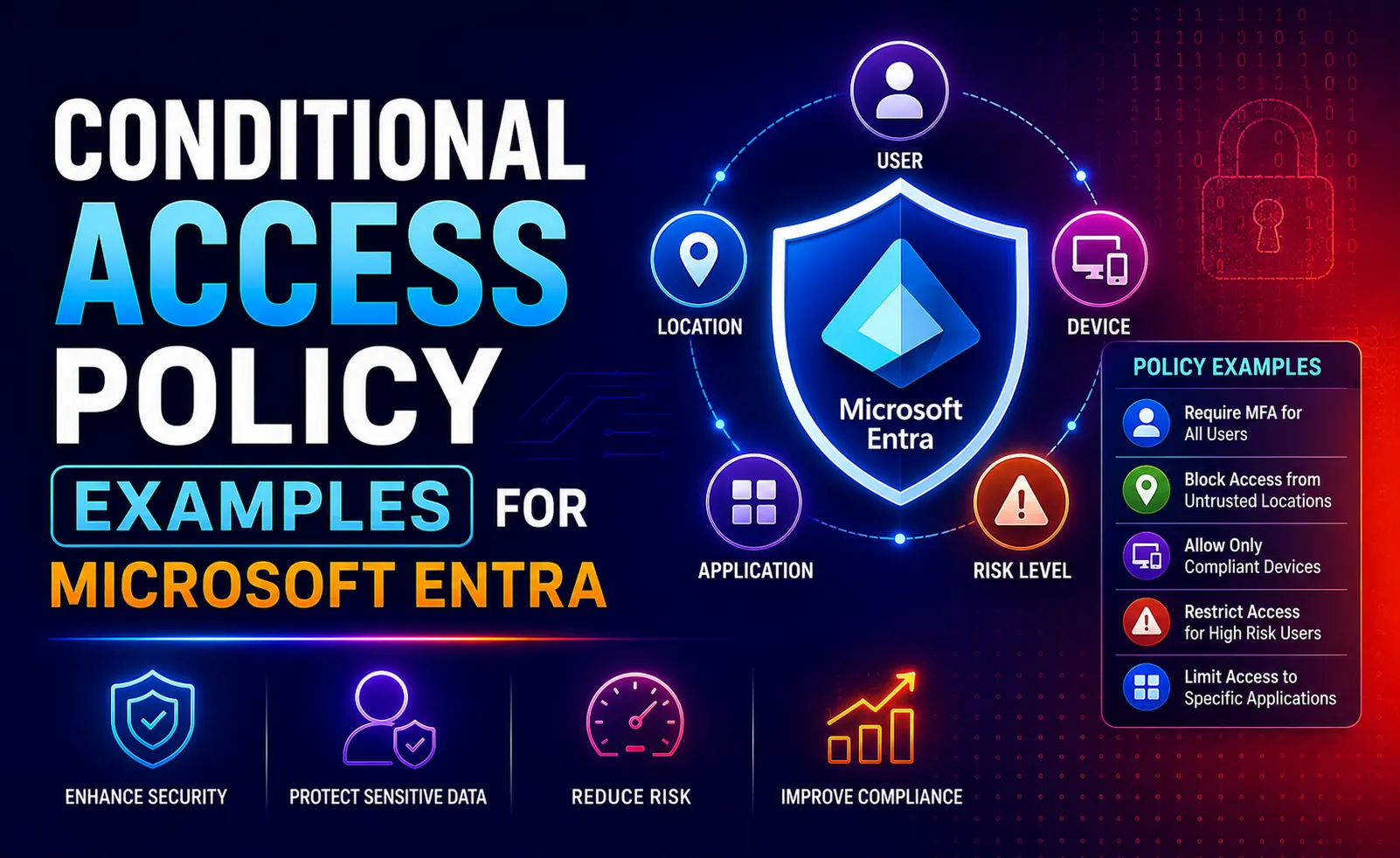
Conditional Access in Microsoft Entra ID is a policy engine that makes access decisions based on signals. Think of it as an if-then system operating at the identity layer:
If a set of defined conditions are met (who the user is, what device they are using, where they are signing in from, what the assessed risk level is) – then apply a defined control (allow access, require MFA, require a compliant device, restrict the session, or block access entirely).
Three components drive every Conditional Access policy:
Signals are the inputs the policy evaluates. They include the user or group identity, the application being accessed, the device platform and compliance state, the network location, the user risk level (from Entra ID Protection), the sign-in risk level, and the authentication flow type.
Decisions are the conclusions the policy reaches based on those signals. A policy can decide to grant access, grant access with conditions (require MFA, require a compliant device, require a specific authentication strength), restrict the session, or block access entirely.
Enforcement is the outcome the user experiences – a prompt for additional authentication, an access-denied message, a restricted session with download controls applied, or seamless access when all conditions are already satisfied.
Understanding this signal-decision-enforcement model is essential because it explains why Conditional Access is fundamentally more powerful than traditional MFA enforcement. It is not just about requiring a second factor. It is about applying the right level of trust verification for the right access request in the right context, automatically.
A note on licensing before we begin: Conditional Access requires at least Microsoft Entra ID P1, which is included in Microsoft 365 Business Premium, Microsoft 365 E3, and Microsoft 365 E5. Risk-based policies using user risk and sign-in risk signals require Entra ID P2 or Microsoft 365 E5. We will note the licence requirement for each policy example below.
Before You Configure Any Policy: Critical Prerequisites
Rushing into Conditional Access configuration without these foundations in place is how organisations lock themselves out or create security gaps that are worse than having no policies at all.
Create and test your break-glass accounts first. Break-glass accounts (also called emergency access accounts) are cloud-only, highly privileged accounts excluded from Conditional Access policies. Their sole purpose is to restore access if something goes wrong – a misconfigured policy, an MFA system outage, or an accidental lockout. Before deploying any Conditional Access policy, create two break-glass accounts, store their credentials securely in a physical location (not in a password manager or digital system), configure alerting on any sign-in from these accounts, and exclude them from every Conditional Access policy. Test them before you need them. This is not optional.
Adopt a naming convention. As your policy count grows – and it will – inconsistently named policies become impossible to manage. Microsoft recommends a structured naming format. A simple convention that works well in practice is: [Scope]-[Target]-[Control]-[State]. For example: ALL-AllUsers-RequireMFA-Enabled, or ADM-AdminRoles-RequirePhishingResistantMFA-Enabled. Consistent naming makes policy reviews, audits, and troubleshooting significantly faster.
Always use Report-Only mode first. Every new Conditional Access policy should be deployed in Report-Only mode before being switched to Enabled. In Report-Only mode, the policy evaluates sign-ins and logs what it would have done – but does not actually enforce anything. Use the Sign-in logs and Conditional Access Insights workbook in Entra to review the Report-Only results for several days before enabling enforcement. This is how you catch unintended consequences before they affect your users.
Understand the May 2026 enforcement change. Microsoft has updated how Conditional Access policies targeting “All resources” behave when resource exclusions are present. From May 13, 2026, these policies will be enforced consistently for all sign-ins – including those from client applications requesting only OIDC scopes – even when resource exclusions are configured. If your policies include resource exclusions, review them before this change takes effect.
Policy Example 1: Require MFA for All Users
Licence required: Entra ID P1 (included in Microsoft 365 Business Premium)
This is the foundational policy that everything else is built on. Every organisation running Microsoft 365 should have this policy active. Without it, a stolen password is sufficient to access every application in your stack.
What it does: Requires all users to complete multi-factor authentication on every sign-in to any cloud application.
How to configure it:
- Users: All users
- Cloud apps: All cloud apps
- Conditions: None (applies universally)
- Grant: Require multi-factor authentication
What to exclude: Service accounts that cannot perform interactive MFA should be excluded by group and compensated with other controls (IP restrictions, strong credential policies, monitoring). Break-glass accounts must be excluded. Guest users whose home tenancy MFA cannot be trusted may need separate handling – create a dedicated group for trusted external users rather than excluding all guests globally.
Important: Do not rely on the legacy per-user MFA setting in Microsoft 365. Microsoft deprecated the legacy per-user MFA and SSPR policies in September 2025. Conditional Access is now the correct and only recommended mechanism for MFA enforcement. If your organisation is still using per-user MFA rather than Conditional Access, migrating is now urgent.
Why this matters for Australian businesses: The ACSC Essential Eight Multi-Factor Authentication control requires MFA to be enforced across all user authentication events to internet-facing services. This policy directly satisfies that requirement for Maturity Level 1 and forms the baseline for Levels 2 and 3.
Policy Example 2: Block Legacy Authentication
Licence required: Entra ID P1 (included in Microsoft 365 Business Premium)
Legacy authentication protocols – POP3, IMAP, SMTP AUTH, basic authentication in older Office clients – do not support modern MFA challenges. An attacker using a legacy authentication client can completely bypass your MFA requirement. This is not a theoretical risk. Blocking legacy authentication is one of the highest-impact, lowest-effort security improvements available in any Microsoft 365 environment.
What it does: Blocks any authentication attempt using legacy protocols, forcing all clients to use modern authentication methods that support MFA.
How to configure it:
- Users: All users
- Cloud apps: All cloud apps
- Conditions: Client apps – select Exchange ActiveSync clients AND Other clients
- Grant: Block access
Common edge cases: Some older line-of-business applications, shared mailbox configurations, and third-party integrations may use legacy protocols. Before enabling this policy, use the Sign-in logs filtered to “Other clients” to identify any legacy authentication traffic in your environment. Address each case individually before enabling the policy in enforcement mode – either by updating the application, configuring modern authentication, or (as a last resort) creating an exclusion with compensating controls.
A note on Microsoft 365 defaults: Microsoft has progressively blocked legacy authentication by default in newer tenancies. However, tenancies created before 2019 may still have legacy authentication enabled, and certain specific protocols may remain active even in newer tenancies. Configuring this Conditional Access policy explicitly, rather than relying on defaults, ensures the block is enforced consistently regardless of tenancy age or configuration drift.
Why this matters: CyberCX’s 2025 Threat Report found that 75% of Business Email Compromise incidents in Australia involved session hijacking – often enabled by legacy authentication pathways that bypass MFA. Closing this gap is a direct response to the most common attack vector in Australian cyber incidents.
Policy Example 3: Require Phishing-Resistant MFA for All Administrators
Licence required: Entra ID P1 (included in Microsoft 365 Business Premium). Custom authentication strength configuration requires no additional licence.
Standard MFA – push notifications and one-time codes – can be bypassed by sophisticated attackers through adversary-in-the-middle phishing kits and MFA fatigue attacks. Administrative accounts have the highest privilege and the highest value as targets. They require a higher standard of authentication.
What it does: Requires all users holding an administrative role to authenticate using phishing-resistant methods – Windows Hello for Business, FIDO2 passkeys, hardware security keys, or certificate-based authentication – when accessing any application or admin portal.
How to configure it:
- Users: Select directory roles – include Global Administrator, Security Administrator, Exchange Administrator, SharePoint Administrator, User Administrator, Conditional Access Administrator, and any other administrative roles in use
- Cloud apps: All cloud apps (or specifically Microsoft Admin Portals for a more targeted approach)
- Grant: Require authentication strength – select Phishing-resistant MFA (a built-in authentication strength in Entra ID)
Why phishing-resistant specifically: Standard push notification MFA can be defeated by real-time phishing proxies that intercept the MFA token alongside the credential. Phishing-resistant methods cryptographically bind the authentication to the specific legitimate domain – a fake login page cannot complete the authentication flow regardless of what credentials the attacker has obtained.
Practical note for organisations without Intune or FIDO2 keys: If your administrative users do not yet have phishing-resistant hardware, create a custom authentication strength that includes certificate-based authentication or Windows Hello for Business alongside FIDO2, and begin procuring hardware keys for admin accounts as a priority project. Deploy this policy in Report-Only mode while the hardware is sourced, then enable enforcement once all admin accounts are equipped.
Essential Eight alignment: The ACSC requires phishing-resistant MFA for all privileged accounts from Essential Eight Maturity Level 2. This policy is the primary technical control that satisfies that requirement.
Policy Example 4: Block Device Code Flow
Licence required: Entra ID P1 (included in Microsoft 365 Business Premium)
Device code flow is an authentication method designed for devices that lack a browser or keyboard – smart TVs, digital signage, shared kiosk displays. The user visits a URL on a separate device, enters a code, and the first device gains access. This flow is increasingly abused in phishing attacks, where an attacker generates a device code and tricks a victim into entering it on a legitimate Microsoft login page – granting the attacker a fully authenticated session token without ever obtaining the victim’s password.
What it does: Blocks the device code authentication flow entirely for all users and all applications, preventing it from being used as a phishing vector.
How to configure it:
- Users: All users
- Cloud apps: All cloud apps
- Conditions: Authentication flows – Device code flow
- Grant: Block access
Handling legitimate exceptions: If your organisation genuinely uses device code flow for shared room displays, conference room systems, or digital signage, create a trusted Named Location for the network those devices operate on, or create a dedicated device filter or group for those devices, and exclude them from this policy. The exclusion should be as narrow as possible – specific devices or specific network ranges, not broad user group exclusions.
Why this matters now: Device code phishing has become a standard technique in targeted attacks against Microsoft 365 environments. Multiple Australian government advisories have specifically warned about this attack vector. Blocking it by default is a straightforward hardening step that eliminates an entire attack category with minimal user impact.
Policy Example 5: Require Compliant or Hybrid-Joined Device
Licence required: Entra ID P1 for the Conditional Access policy. Microsoft Intune licence required for device compliance evaluation (included in Microsoft 365 Business Premium).
Requiring MFA verifies who a user is. Requiring a compliant device verifies that the device they are using meets your security standards – that it has up-to-date patches, active antivirus, disk encryption enabled, and a functioning firewall. Together, these two controls address both identity and device trust – the two core pillars of Zero Trust access.
What it does: Requires that any device used to access Microsoft 365 applications is either enrolled in Microsoft Intune and marked compliant against your defined compliance policies, or is hybrid-joined to an on-premise Active Directory domain.
How to configure it:
- Users: All users
- Cloud apps: All cloud apps (or initially scope to high-sensitivity apps like Exchange Online and SharePoint)
- Conditions: Device platforms – All platforms
- Grant: Require device to be marked as compliant OR Require hybrid Azure AD joined device (select “Require one of the selected controls”)
Building your compliance policies first: This Conditional Access policy is only as effective as the Intune compliance policies that define what “compliant” means. Before enabling enforcement, ensure your compliance policies cover: minimum OS version, BitLocker or FileVault encryption, Windows Firewall active, antivirus active and up to date, and device not jailbroken or rooted. Start with achievable compliance thresholds and tighten them iteratively once you understand your baseline device posture.
Handling BYOD: For personal devices, you have several options: require enrolment in Intune (Bring Your Own Device enrolment), require the Intune Company Portal app with a device compliance check, or use Conditional Access App Control to allow limited, session-restricted access from unmanaged devices without requiring full enrolment. The right approach depends on your organisation’s BYOD policy and risk tolerance.
Session controls for unmanaged devices: If your organisation must allow access from personal devices that will not be enrolled, configure a session control using Conditional Access App Control (requires Microsoft Defender for Cloud Apps) to block downloads, restrict printing, and prevent copy-paste of sensitive data. This provides a meaningful security baseline for unmanaged device access without blocking it entirely.
Policy Example 6: Risk-Based MFA Step-Up (Sign-In Risk Policy)
Licence required: Entra ID P2 (included in Microsoft 365 E5 or as a standalone add-on)
Entra ID Protection continuously analyses every sign-in event against Microsoft’s global threat intelligence – billions of authentication events across the Microsoft tenant ecosystem. It assigns each sign-in a risk level: Low, Medium, or High. A high-risk sign-in might indicate a known malicious IP address, an atypical location, impossible travel (signing in from Sydney and London within minutes of each other), or signs of token replay.
What it does: When a sign-in is assessed as medium or high risk, automatically requires the user to complete MFA before access is granted. High-risk sign-ins can be configured to require a password change as well.
How to configure it (Medium and High Risk):
- Users: All users
- Cloud apps: All cloud apps
- Conditions: Sign-in risk – Medium and above
- Grant: Require multi-factor authentication
How to configure it (High Risk – Password Change):
- Users: All users
- Cloud apps: All cloud apps
- Conditions: Sign-in risk – High
- Grant: Require multi-factor authentication AND Require password change
Why this is more powerful than static MFA: A static MFA requirement treats every sign-in identically regardless of risk. Risk-based policies apply friction proportionally – a normal sign-in from a known device at the usual time of day passes without interruption, while an anomalous sign-in triggers additional verification automatically. This is the intelligent, adaptive security model that Microsoft’s Zero Trust architecture is built on.
Important: Legacy risk policies from Entra ID Protection (the “User risk policy” and “Sign-in risk policy” within the Identity Protection blade) were retired in October 2026. If your organisation was using those legacy controls, they must be migrated to Conditional Access policies using the configuration above. This migration is now mandatory.
Policy Example 7: Risk-Based Block or Password Reset (User Risk Policy)
Licence required: Entra ID P2 (included in Microsoft 365 E5)
Where sign-in risk evaluates a single authentication event, user risk evaluates the cumulative risk posture of a specific user account over time. A high user risk score indicates Entra ID Protection has evidence suggesting the account may be compromised – for example, credentials appearing in a known breach database, anomalous account behaviour, or multiple risky sign-in events.
What it does: For high user risk – where there is strong evidence the account may be compromised – blocks access or requires a secure password change before any access is permitted. For medium risk, step-up MFA is required.
How to configure it (High User Risk):
- Users: All users
- Cloud apps: All cloud apps
- Conditions: User risk – High
- Grant: Require multi-factor authentication AND Require password change
How to configure it (Medium User Risk):
- Users: All users
- Cloud apps: All cloud apps
- Conditions: User risk – Medium and above
- Grant: Require multi-factor authentication
The self-remediation loop: When configured alongside Self-Service Password Reset (SSPR), a user with a high risk score can remediate their own account by completing MFA, resetting their password, and having their risk score cleared – without requiring IT helpdesk involvement. This is the recommended configuration because it reduces helpdesk overhead while maintaining security.
Australian context: The Medibank breach – in which attackers accessed internal systems using credentials obtained through a contractor without MFA – is the clearest Australian example of what high user risk events can indicate. A properly configured user risk policy would have detected the anomalous access and required remediation before the attackers could move laterally.
Policy Example 8: Require Token Protection for Managed Devices
Licence required: Entra ID P2 (Microsoft 365 E5 or standalone add-on)
Token theft has become one of the most sophisticated identity attack techniques in 2025 and 2026. After obtaining an access token – through adversary-in-the-middle phishing, malware on an endpoint, or browser session hijacking – an attacker can replay that token from any device, bypassing MFA entirely because the token has already been issued. CyberCX’s 2025 Threat Report found that 75% of Business Email Compromise incidents in Australia now involve session hijacking of this type.
What it does: Creates a cryptographic binding between the access token and the specific managed device it was issued to. A token stolen from one device cannot be replayed from any other device – it becomes cryptographically invalid outside its bound device.
How to configure it:
- Users: All users
- Cloud apps: Exchange Online, SharePoint Online (note: token protection is currently supported for these apps; expand scope as Microsoft extends support)
- Conditions: Client apps – Mobile apps and desktop clients; Device filter – Include devices where ExtensionAttribute matches Entra joined or hybrid joined devices
- Session: Require token protection for sign-in sessions
Requirements and limitations: Token protection requires Windows 10 or later, Entra joined or hybrid joined devices, and specific minimum client versions: OneDrive sync 22.217 or later, Teams 1.6.00.1331 or later, Power BI Desktop 2.117.841.0 or later. It is not supported on Office perpetual (non-subscription) clients, Surface Hub, or Microsoft Teams Rooms devices. Exclude these from the policy explicitly.
Why this matters in 2026: As MFA adoption increases, attackers have shifted their focus to stealing tokens post-authentication rather than stealing credentials pre-authentication. Token protection closes this attack vector for managed devices – it is one of the most impactful advanced protections available in Entra ID P2.
Policy Example 9: Require Phishing-Resistant MFA for All Entra-Joined Devices
Licence required: Entra ID P1 for the policy; FIDO2 keys or Windows Hello for Business required on devices
This policy addresses a specific and increasingly exploited gap: attackers have demonstrated techniques to bypass Windows Hello for Business authentication – the face/fingerprint/PIN-based authentication built into Windows. While Windows Hello for Business is a phishing-resistant method in most contexts, specific attack techniques targeting the Windows credential provider layer have been documented.
What it does: Requires all users authenticating from Entra-joined devices to use a phishing-resistant authentication strength – ensuring that even if Windows Hello-specific attack techniques are used, the authentication is evaluated against a policy requiring a verified phishing-resistant factor.
How to configure it:
- Users: All users
- Cloud apps: All cloud apps
- Conditions: Device filter – Include devices where ExtensionAttribute matches Entra joined or hybrid joined
- Grant: Require authentication strength – Phishing-resistant MFA
The layered security value: This policy works in conjunction with Policy 3 (phishing-resistant MFA for administrators) to create defence in depth. Admin accounts have explicit phishing-resistant MFA requirements regardless of device. This policy extends phishing-resistant authentication requirements to standard users on managed devices, further reducing the attack surface.
Policy Example 10: Block Access from High-Risk Countries (Named Locations Policy)
Licence required: Entra ID P1 (included in Microsoft 365 Business Premium)
For Australian businesses whose workforce is entirely or predominantly Australia-based, blocking authentication attempts originating from countries with no legitimate business connection dramatically reduces exposure to credential stuffing, password spray, and opportunistic access attempts.
What it does: Blocks all authentication attempts originating from countries outside your organisation’s legitimate operating geography.
How to configure it:
- Navigate to Entra ID > Security > Named Locations > Create a Countries location
- Select all countries from which your workforce legitimately signs in (for most Australian SMBs: Australia, and any countries where remote workers or travellers regularly operate)
- In Conditional Access, create a policy:
- Users: All users
- Cloud apps: All cloud apps
- Conditions: Locations – Include “Any location,” Exclude the Named Location of your legitimate countries
- Grant: Block access
Important considerations: Before enabling this policy, review your sign-in logs to identify any legitimate sign-ins from non-Australian locations – remote workers, international business travel, contractor sign-ins. Ensure these are accounted for either by expanding the allowed countries list or by creating exclusion groups. For staff who travel internationally, consider using a Named Location exception combined with a step-up MFA requirement rather than a hard block.
Break-glass accounts must be excluded. If the IdP itself becomes inaccessible or your break-glass accounts are accidentally included, this policy could prevent recovery. Verify your break-glass account exclusions before enabling.
Recommended Policy Deployment Sequence
The order in which you deploy Conditional Access policies matters. Enabling advanced policies before foundational ones creates gaps. This is the sequence we recommend for Australian businesses starting from zero.
Start here (Essential Eight Maturity Level 1): Create break-glass accounts and verify exclusions are in place. Deploy Policy 2 (block legacy authentication) in Report-Only mode, review logs for one week, then enable. Deploy Policy 1 (require MFA for all users) in Report-Only mode, review logs for one week, then enable.
Next (Essential Eight Maturity Level 2 baseline): Configure device compliance policies in Intune. Deploy Policy 4 (block device code flow) in Report-Only then enable. Deploy Policy 3 (phishing-resistant MFA for admins) in Report-Only then enable. Deploy Policy 5 (require compliant device) in Report-Only, extend review period to two weeks given user impact, then enable.
Advanced (Essential Eight Maturity Level 2+ and Zero Trust progression): Upgrade to Entra ID P2 if not already licenced. Deploy Policy 6 and Policy 7 (sign-in risk and user risk policies). Deploy Policy 10 (country-based location blocking). Evaluate and deploy Policy 8 (token protection) as device compatibility allows. Deploy Policy 9 (phishing-resistant MFA for managed devices).
Never rush. The most common Conditional Access failure mode is enabling multiple policies simultaneously without adequate testing. One misconfigured policy that locks out all users at 8am on a Monday is a recoverable incident. Multiple misconfigured policies deployed simultaneously can create compounding access failures that are significantly harder to diagnose.
How These Policies Map to Australian Compliance Requirements
Essential Eight – Multi-Factor Authentication: Policies 1, 3, 6, and 7 directly address the Essential Eight MFA control. Policy 1 meets Maturity Level 1. Adding Policy 3 with phishing-resistant MFA for privileged accounts meets Maturity Level 2. Adding risk-based policies (6 and 7) and extending phishing-resistant MFA to all users meets Maturity Level 3. See our Essential Eight checklist for a detailed maturity mapping across all eight controls.
Essential Eight – Restrict Administrative Privileges: Policy 3 directly supports this control by requiring a higher authentication standard for all accounts holding administrative roles, reducing the risk of admin account compromise.
Privacy Act 1988 (Cth) and Australian Privacy Principles: Conditional Access policies create a documented, auditable access control layer that demonstrates “reasonable steps” to protect personal information held in Microsoft 365 – a direct requirement under the Privacy Act. The sign-in logs generated by Conditional Access provide the audit trail required to investigate and report a notifiable data breach under the NDB scheme.
NSW Cyber Security Policy: NSW Government agencies and their supply chain are required to demonstrate identity and access controls aligned with these standards. Conditional Access policies, properly documented and reviewed, provide direct evidence for these controls.
ISO 27001 / SOC 2: Access control (ISO 27001 Annex A.9, SOC 2 CC6) is directly addressed by Conditional Access policy implementation. Documented policies, regular access reviews, and sign-in log retention support both ISO 27001 and SOC 2 Type II evidence requirements.
For a broader view of how Conditional Access fits into your overall identity security posture, see our guide to Microsoft Entra ID and our network security services.
Common Conditional Access Mistakes Australian Businesses Make
Using trusted locations to bypass MFA for office IP addresses. This is one of the most dangerous misconfigurations we encounter. Exempting your office IP range from MFA creates a Zero Trust contradiction – you are implicitly trusting the network, not the identity. In 2025, CyberCX documented an Australian organisation that had disabled MFA enforcement for the majority of its users by exempting eight /24 IP blocks. Any attacker who can spoof or route through those IP ranges bypasses MFA entirely. Remove location-based MFA exemptions. Trust identities, not network locations.
Not excluding break-glass accounts. A Conditional Access policy that accidentally includes your break-glass accounts can create a situation where you are locked out of your tenant with no recovery path. This happens more often than it should. Verify break-glass account exclusions are present in every policy.
Deploying multiple policies simultaneously without testing. Conditional Access policy evaluation is cumulative – all matching policies are evaluated, and the most restrictive grant control wins. Deploying ten new policies at once without understanding their interactions guarantees unexpected outcomes. One policy at a time, in Report-Only mode first, every time.
Not reviewing Report-Only results before enabling. Report-Only mode exists precisely to prevent enforcement mistakes. Reviewing only a few sign-in events before enabling a policy is insufficient. A full business week of Review-Only log review, across all shift patterns and user types, should be the minimum before enabling any policy that affects all users.
Setting overly broad exclusions for service accounts. Excluding an entire group of service accounts from all Conditional Access policies because a few accounts have MFA compatibility issues creates a shadow zone where attackers can operate freely. Address each service account individually – use Managed Identities or service principals where possible, restrict those that must use credentials to specific trusted IP ranges, and monitor them with dedicated alerts.
Ignoring workload identities. Conditional Access now supports policies targeting workload identities (service principals and managed identities). Applications, automation scripts, and service connections that authenticate to Microsoft services should be governed by Conditional Access just as user identities are. Overlooking workload identity governance is an increasingly common gap in otherwise well-configured environments.
A Real-World Example: Building Conditional Access for a Sydney Financial Services Firm
A 60-person financial services firm in Sydney engaged CodeHyper after their cyber insurer flagged identity controls as a material gap in their renewal assessment. They were running Microsoft 365 Business Premium but had no Conditional Access policies beyond Security Defaults, which they had partially disabled to accommodate a legacy accounting application.
Their situation was common: a mix of managed and personal devices, a small IT team with limited Entra ID experience, three service accounts used by third-party integrations that the team was unsure could support MFA, and a real concern about user disruption during a busy period.
We started with a sign-in log review, which identified the legacy authentication traffic from the accounting application integration and two of the three service accounts. The third service account turned out to already be using modern authentication and could be included in MFA policies without modification.
The deployment sequence across four weeks was: break-glass accounts created and exclusions configured in week one; legacy authentication blocked and device code flow blocked in week two (Report-Only first, then enabled after three days of clean logs); MFA for all users enabled with a staged rollout by department in week three; phishing-resistant MFA for the three admin accounts configured and enabled using Windows Hello for Business in week four.
The accounting application integration was handled by configuring a Named Location for the application vendor’s IP range and excluding service account traffic from that range from the MFA policy, while adding an alert for any authentication from that account outside the expected IP range.
Result: full Conditional Access policy coverage, Essential Eight MFA Maturity Level 2 achieved for the insurer’s assessment, and zero user lockout incidents during the deployment. The entire project required no additional licence spend – the client’s existing Microsoft 365 Business Premium licences covered everything.
If your organisation needs a similar structured approach, contact our team for a no-obligation Conditional Access assessment.
Related Reading
If you found this guide useful, these resources from the CodeHyper blog cover related topics in depth:
- What Is Microsoft Entra ID – A foundational overview of the platform behind all of these policies
- Entra ID Explained – Deeper coverage of features, licensing, and configuration
- Entra ID Protection – How risk signals feed into risk-based Conditional Access policies
- Microsoft 365 Security – Securing your M365 environment beyond identity
- Single Sign-On Implementation Guide – How Conditional Access integrates with your broader SSO architecture
- Essential Eight Checklist 2025 – Where Conditional Access fits within the full Essential Eight framework
- Understanding TTPs – How attackers approach identity systems and what controls stop them
- Microsoft 365 Security Assessment Sydney – Review Conditional Access coverage, exclusions, administrator protection and related tenant controls before making production changes.
Frequently Asked Questions
What is a conditional access policy in Microsoft Entra ID?
A Conditional Access policy in Microsoft Entra ID is a rule that evaluates signals – who the user is, what device they are using, where they are signing in from, and what risk level the sign-in has been assessed at – and applies a control based on those signals. Controls can include allowing access, requiring MFA, requiring a compliant device, restricting the session, or blocking access entirely. Conditional Access is the policy engine at the centre of Microsoft’s Zero Trust identity architecture.
What licence do I need for Conditional Access?
Conditional Access requires at least Microsoft Entra ID P1, which is included in Microsoft 365 Business Premium, Microsoft 365 E3, and Microsoft 365 E5. Risk-based Conditional Access policies that use user risk and sign-in risk signals from Entra ID Protection require Entra ID P2, which is included in Microsoft 365 E5. Most Australian SMBs running Microsoft 365 Business Premium already have the licence needed for the foundational policies in this guide.
What is the difference between Security Defaults and Conditional Access?
Security Defaults are a one-click baseline that enforces MFA registration for all users, requires MFA for administrators, and blocks legacy authentication. They are available at no additional cost on all Microsoft 365 plans and require no configuration. Conditional Access provides far greater granularity: you can define exactly who the policy applies to, under what conditions, and what control is enforced. Conditional Access is the right choice for any organisation with specific requirements around device compliance, location restrictions, risk-based step-up, or phishing-resistant MFA for administrators. Security Defaults and Conditional Access cannot be used simultaneously – enabling Conditional Access policies requires disabling Security Defaults.
How do I test a Conditional Access policy before enabling it?
Always deploy new Conditional Access policies in Report-Only mode first. In Report-Only mode, the policy is evaluated against real sign-ins but does not enforce any controls – users experience no impact. Sign-in logs record what the policy would have done if it were active. Use the Conditional Access Insights and Reporting workbook in Entra ID to review these results. Evaluate results across a full business week – covering all shift patterns, all user types, and all application access patterns – before switching the policy from Report-Only to Enabled.
What is a break-glass account and why does it matter for Conditional Access?
Break-glass accounts (also called emergency access accounts) are cloud-only, highly privileged accounts that are excluded from all Conditional Access policies. They exist to restore tenant access if a misconfigured policy locks out all administrators, if an MFA system becomes unavailable, or in any other emergency that prevents normal administrative access. Break-glass accounts should be cloud-only (not synced from on-premise Active Directory), excluded from every Conditional Access policy, monitored with real-time alerts on any sign-in, and their credentials stored securely in a physical location. They should be tested at least annually to verify they work. Creating break-glass accounts before deploying any Conditional Access policies is the single most important prerequisite for a safe deployment.
How do Conditional Access policies support Essential Eight compliance?
The ACSC Essential Eight Multi-Factor Authentication control requires MFA enforcement across all user authentication events, with phishing-resistant MFA required for privileged accounts at Maturity Level 2 and above. Conditional Access is the technical mechanism through which these requirements are enforced in Microsoft 365 environments. Policy 1 (MFA for all users) addresses ML1. Adding phishing-resistant MFA for administrators (Policy 3) addresses ML2. Risk-based policies (Policies 6 and 7) and extending phishing-resistant MFA to all managed devices (Policy 9) support progression toward ML3. Microsoft has published specific guidance on configuring Conditional Access to meet each Essential Eight MFA maturity level requirement.
Can Conditional Access block access from specific countries?
Yes. Named Locations in Entra ID allow you to define geographic boundaries based on country or IP range. A Conditional Access policy can then block all sign-in attempts originating outside your defined legitimate locations. For Australian businesses whose workforce is primarily Australia-based, this is a practical and high-impact way to reduce exposure to credential-based attacks originating from overseas. The policy should be tested carefully – reviewing sign-in logs for legitimate international traffic (remote workers, business travel, third-party integrations) before enabling enforcement.
What is the risk of getting Conditional Access wrong?
The primary risks are: locking users out of all applications by misconfiguring a policy that blocks more than intended, creating security gaps by configuring policies that are less restrictive than they appear due to overly broad exclusions, or deploying policies that conflict with each other in unexpected ways. All three risks are mitigated by following the prerequisites in this guide: creating and testing break-glass accounts before any deployment, using Report-Only mode for every new policy, reviewing logs thoroughly before enabling enforcement, and deploying policies one at a time in the recommended sequence.
What is token protection in Conditional Access?
Token protection (also known as token binding) creates a cryptographic link between an access token and the specific device it was issued to. This prevents token theft attacks – where an attacker steals a valid access token and replays it from a different device to impersonate the user. Token protection is configured as a session control in Conditional Access policies and requires Entra ID P2 licences. It is currently supported for Exchange Online and SharePoint Online on Entra-joined and hybrid-joined Windows devices running modern client versions.