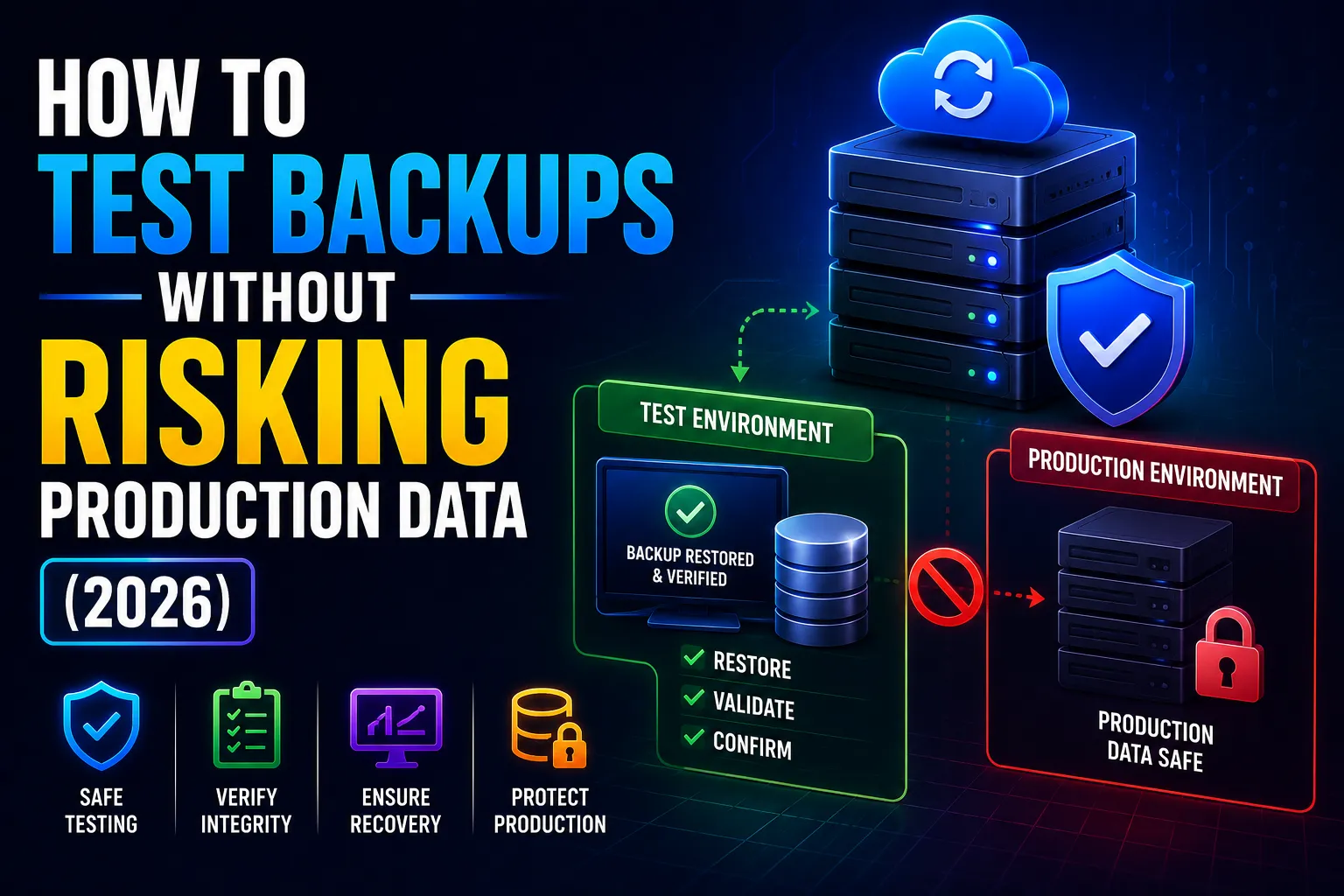
Quick Answer: The safest way to test backups without risking production data is to restore into an isolated sandbox environment that has no connection to your live systems. You validate the restored data, confirm applications function correctly, measure how long the restore took, and document the result. You never restore on top of production. You never test on a connected network that can reach live systems.
Key Takeaways
- An untested backup is not a recovery strategy. It is an assumption.
- The golden rule: restore tests happen in a completely isolated environment with no connection to production networks.
- There are five distinct testing methods, from simple to advanced. Most organisations should run at least three of them on a defined schedule.
- Recovery Time Objective (RTO) and Recovery Point Objective (RPO) must be defined before you test, so you know what pass and fail actually mean.
- Microsoft 365 data (Exchange, SharePoint, OneDrive, Teams) requires separate backup testing because Microsoft does not provide a full backup restore capability.
- Under the Australian Essential Eight framework, backup and recovery capability must be tested and verified as part of Maturity Level 1 compliance.
- According to research by Sophos, 75% of organisations hit by ransomware in 2024 could not fully restore from backup without paying a ransom. Untested backups are a primary cause.
Why Backup Testing Is Not Optional
Most businesses check that backup jobs complete successfully. They get a green tick, a “Backup completed” email, and they move on.
That tells you the backup job ran. It tells you nothing about whether the data can actually be restored.
A backup job completing successfully means data was copied. It does not mean the copy is readable. It does not mean your applications will function after a restore. It does not mean the restore will complete within your acceptable downtime window. It does not mean the restored data is the version you think it is.
According to NinjaOne’s 2025 backup research, 93% of organisations experience backup failures when they actually need to restore. Most of those failures are discovered during a real incident, not during a test.
Testing solves this. Testing reveals gaps before an attacker, a hardware failure, or a flood reveals them for you.
And critically: testing can be done safely, on a schedule, without touching your production environment at all.
The Core Principle: Isolated Restore Environments
Before covering any testing method, this rule applies to all of them:
Restore tests must happen in an environment that is completely isolated from production.
Isolated means:
- No network connection to your production systems or domain
- Separate administrator credentials, not pulled from your production Active Directory
- No outbound internet access unless you are specifically testing connectivity
- Storage that cannot be reached by anything in your live environment
Why does this matter so much? Two reasons.
First, ransomware. If you are testing recovery from a backup that was taken after an attacker was already present in your environment, you could reintroduce ransomware or other malware into your network by connecting the restored system to production. This is a documented real-world incident pattern.
Second, data conflicts. Restoring a database or server into a connected environment, even briefly, can cause data conflicts, duplicate records, and synchronisation errors that affect your live systems. Users notice. Business is disrupted. The test caused the problem it was meant to prevent.
Isolated environments eliminate both risks entirely.
Step 1: Define What You Are Testing Before You Start
The most common backup testing mistake is jumping straight into a restore without defining what success looks like.
Before any test, document these three things for each system you are testing:
Recovery Time Objective (RTO): How long can this system be unavailable before it causes unacceptable business impact? This is your maximum acceptable recovery time. If your accounting system must be back within 4 hours, your RTO is 4 hours. The test must measure whether your actual restore time meets this target.
Recovery Point Objective (RPO): How much data can this system lose without causing serious business impact? If your RPO is 4 hours, you need backups running every 4 hours or less. The test confirms that the restore point you are recovering from contains data that is no more than 4 hours old.
Pass criteria: What does a successful restore actually look like? “The server turned on” is not a pass criterion. Pass criteria should include: applications start correctly, users can log in with test accounts, data from a specific known point in time is present, database queries return expected results, and integration with other systems functions.
Without these three definitions, you cannot evaluate whether a test passed or failed. You are just doing a restore and hoping for the best.
The Five Backup Testing Methods
Different situations call for different testing methods. Use a mix of all five across your testing programme.
Method 1: Tabletop Exercise (No Technology Required)
A tabletop exercise is a facilitated discussion where the IT team and key business stakeholders walk through a recovery scenario step by step, without actually touching any systems.
You pick a scenario. “Our primary file server has failed and is unrecoverable. Walk me through exactly what happens from the moment we discover the failure.”
The team talks through each step: who gets notified, who has the backup credentials, where the backup software portal is, how long the restore is expected to take, who decides when to failover, how users are notified.
This reveals gaps that are not technical. No one knows where the backup credentials are stored. The person who manages the backup system is on leave. The contact number for the backup vendor is in a document on the failed server.
Tabletop exercises take 1 to 2 hours and cost nothing. They reveal the human and process failures that technology tests do not catch. Run them at least annually and after any significant change to your backup environment.
Method 2: Granular File and Folder Restore
Granular restore testing validates that you can recover individual files, emails, or database records from a backup, without restoring an entire system.
This is the most practical test for ongoing validation because it is fast, low risk, and can be done frequently.
How it works:
- Pick a file that was backed up in the last 24 hours. Preferably a file you know was modified at a specific time.
- Initiate a restore to an isolated location, not to the original path.
- Confirm the file contents match what was there at the backup point in time.
- Measure how long the restore took.
- Document the result.
For Microsoft 365 environments, this means testing email restore, SharePoint document restore, and OneDrive file restore from your dedicated M365 backup solution. Test a specific email, a specific version of a document, and a specific OneDrive file. Confirm each restore returns the correct version of the data within an acceptable time.
Run granular restore tests monthly on your most critical systems. They take 15 to 30 minutes each and provide continuous validation that your backup data is readable.
Method 3: Full System Restore to Isolated Sandbox
A full system restore test recovers an entire server, virtual machine, or application to an isolated environment and validates that it functions correctly.
This is the most important test you can run. It is also the test most organisations skip because it sounds complicated.
It does not have to be. Here is the basic process:
- Provision an isolated environment. For on-premise environments, this is a separate VLAN with no routes to production, or a completely offline network segment. For cloud environments, this is a separate VPC or virtual network with no peering to your production network.
- Initiate a full restore of the server or virtual machine from your backup into this isolated environment.
- Boot the restored system. Confirm it reaches the operating system.
- Log in with test credentials. Confirm authentication works.
- Start key applications. Confirm they load without errors.
- Verify data. Run specific queries or checks that confirm the data matches your expected restore point.
- Measure total elapsed time from initiating the restore to confirmed application function. Compare to your RTO.
- Shut down the isolated environment completely. Do not connect it to production.
- Document everything.
For organisations using Veeam, Datto, or Acronis, these platforms include built-in sandbox or instant virtualisation features that automate much of this process. Veeam’s SureBackup creates a fully isolated virtual lab from a backup image and runs predefined verification scripts automatically. Datto Instant Virtualisation spins up a backup image as a virtual machine in seconds for rapid testing. These tools eliminate most of the manual effort and allow frequent automated testing.
Run full system restore tests quarterly for critical systems and annually for lower-priority systems.
Method 4: Parallel Recovery Test
A parallel recovery test restores systems into an isolated environment while production continues running normally.
This is the gold standard for validating business continuity plans for critical systems without causing any disruption.
The difference between this and a full system restore test is scope and coordination. A parallel test recovers not just one server but a group of related systems that need to work together: the application server, the database server, and the network configuration that connects them. You validate that the whole application stack works in the restored environment, not just that individual components start.
This test simulates a real disaster recovery scenario. You are answering the question: if production failed right now and we had to run our business from backup data, could we actually do it?
Parallel tests require more planning and resources than a single system restore, but they reveal dependencies and integration failures that simpler tests miss.
Run parallel recovery tests annually for your most business-critical application stacks.
Method 5: Automated Backup Verification
Automated backup verification uses your backup platform’s built-in tools to continuously verify backup integrity without requiring a manual test each time.
This is not a replacement for manual restore testing. It is a daily health check that runs between your manual tests.
Veeam’s SureBackup, Acronis’s backup verification, and Datto’s backup screenshots all work on this principle. After each backup job completes, the platform automatically mounts the backup image, boots the virtual machine, takes a screenshot to confirm it reached the operating system, and runs any defined verification scripts. The result is logged and available in the dashboard.
If a backup image fails automated verification, you know immediately. You can investigate and fix the issue before you need that backup in a real incident.
Enable automated verification on every backup job where your platform supports it. Review the verification logs weekly.
How Often Should You Test Each System?
Not all systems need the same testing frequency. Match your testing schedule to the business impact of losing each system.
System tier | Business impact | Recommended testing schedule |
Tier 1: Critical | Business cannot operate without it (accounting system, ERP, production database) | Automated verification: daily. Granular restore: monthly. Full sandbox restore: quarterly. Parallel recovery: annually. |
Tier 2: Important | Significant disruption if lost but workarounds exist (CRM, email archive, file servers) | Automated verification: daily. Granular restore: quarterly. Full sandbox restore: annually. |
Tier 3: Standard | Moderate disruption, reasonable workarounds (secondary servers, development systems) | Automated verification: weekly. Full sandbox restore: annually. |
Microsoft 365 | Email, SharePoint, Teams, OneDrive | Granular restore: monthly. Full mailbox or site restore: quarterly. |
If you do not know which tier each system falls into, that is the first problem to solve. Document a business impact assessment for each system before you design your testing schedule.
Testing Microsoft 365 Backups Specifically
Microsoft 365 backup testing is different from server or VM backup testing and is frequently overlooked.
Most organisations assume Microsoft handles Microsoft 365 backup. Microsoft provides infrastructure redundancy and a 93-day recycle bin. This is not a backup. It is a deletion safety net with a time limit.
If you use a dedicated Microsoft 365 backup solution (Microsoft 365 Backup, Datto SaaS Protection, Veeam for Microsoft 365, or similar), your backup testing should include:
Exchange Online email restore: Pick a specific email that was sent or received on a known date. Restore it to a test mailbox, not the original mailbox. Confirm the email content, attachments, and metadata are intact. Measure the restore time.
SharePoint document restore: Pick a specific document that was modified on a known date. Restore the previous version to an alternate location. Confirm the content matches the expected version.
OneDrive file restore: Same process as SharePoint.
Teams channel restore: If your backup solution covers Teams data, test restoring a specific channel’s file library.
Full mailbox restore: Quarterly, test a complete mailbox restore for a test user. Confirm all folders, emails, contacts, and calendar items are present and the mailbox is accessible.
Document the time each restore takes and compare to your RTO for email availability. Many organisations discover during testing that a full mailbox restore takes 4 to 8 hours. If your RTO for email is 2 hours, you have a gap to address.
See our M365 backup solutions guide for a comparison of the main backup platforms and their restore capabilities.
What to Document After Every Test
Documentation is not optional. It is what transforms a backup test from an informal check into an auditable, defensible record.
After every backup test, record:
What was tested: The specific system, backup date/time, restore type (granular, full, parallel), and the backup platform used.
The test environment: Where the restore was performed, confirmation it was isolated, and who had access.
The result: Pass or fail against your defined criteria. Not “it seemed to work” but specific confirmation: application started, data verified at the correct point in time, users could authenticate.
Restore time: The actual elapsed time from initiating the restore to confirming full application function. Compared against the defined RTO.
Data age: The actual recovery point achieved, compared against the defined RPO.
Any issues found: Every problem discovered during testing. What was the issue, how was it resolved, and has the fix been verified?
Next review date: When is this system scheduled to be tested again?
Store this documentation in a centralised location that is accessible to all relevant stakeholders, not in a folder on the backup admin’s laptop. Your IT documentation system, SharePoint, or your PSA platform are all appropriate locations.
This documentation serves three purposes. It gives you a history of backup health so you can spot degrading performance over time. It provides evidence for compliance audits and cyber insurance assessments. And it means that when an actual incident occurs, the person responding knows exactly what was last tested, when, and what the results were, even if the primary backup administrator is unavailable.
Our IT documentation best practices guide covers the documentation system structure that backup test records should sit within.
Common Backup Testing Mistakes to Avoid
Only checking that backup jobs complete. A completed job means data was copied. It says nothing about whether the data can be restored. Completion checks are the beginning, not the end, of backup validation.
Restoring to the original location. Never restore a backup test onto a production system. Test restores go to isolated environments only.
Testing only one file, not the whole system. A single file restore succeeding does not mean a full server restore will succeed. The failure modes are completely different. Run both types of tests.
Not testing after changes. Every significant change to your environment invalidates previous backup test results. New server, new application, new backup agent version, new storage configuration: all of these require a fresh restore test to confirm the backup still works in the changed environment.
Using the same credentials for backup testing as production. Backup test environments should use separate, locally stored credentials that are not drawn from your production Active Directory. This prevents contamination and maintains proper isolation.
No defined pass criteria. If you cannot say whether a test passed or failed against specific criteria, the test result is meaningless. Define RTO, RPO, and application functionality requirements before you start.
Testing only when something prompts it. Backup testing should be on a fixed schedule, not triggered only by incidents, audits, or gut feeling. A schedule is the only thing that guarantees regular testing actually happens.
Backup Testing and Australian Compliance
Backup testing is not just an IT best practice in Australia. It is increasingly a compliance requirement.
The ACSC Essential Eight framework requires that data backups are tested as part of the backup control at all maturity levels. At Maturity Level 1, backups of important data, software, and configuration settings must exist and be tested. At Maturity Level 2, the frequency and scope of testing increases. At Maturity Level 3, recovery capability must be tested against defined RTO and RPO targets for all critical systems.
Under the Privacy Act 1988 and the Notifiable Data Breaches scheme, organisations must be able to assess the scope of a data breach if one occurs. This requires knowing which data was accessible in a compromised backup and whether that data has been successfully recovered or is at risk. Untested backups make this assessment impossible.
Cyber insurers in Australia are increasingly asking for evidence of backup testing as a condition of coverage. At renewal, expect questions about the last time a full system restore was tested, what the measured recovery time was, and whether Microsoft 365 data is separately backed up and tested. Providing documentation of regular, structured backup tests directly supports your insurance position.
For the full Essential Eight compliance picture, see our Essential Eight checklist.
A Real Example: What Backup Testing Found for a Sydney Law Firm
A 30-person law firm in Sydney had been running nightly backups of their matter management server for three years. Backup jobs completed successfully every night. No one had ever tested a restore.
When we conducted a backup assessment, we initiated a full system restore into an isolated environment. The restore started successfully. After 6 hours, we had a running server, but the matter management application would not start. The SQL Server instance it relied on required a specific version of a redistributable package that was not present on the restored system. The application had been updated 18 months earlier. The backup contained the new application version, but the restore environment did not have the dependency installed.
In a real recovery scenario, the firm would have had a running server but a non-functional application. They would have spent hours troubleshooting before identifying the missing dependency. Their RTO for the matter management system was 4 hours. The actual recovery time, including dependency resolution, would have been 9 hours or more.
The fix was simple: document the application dependency, include it in the recovery runbook, and pre-install it in the restore environment. The next restore test completed with a functional application in 4 hours and 20 minutes, just within the RTO target.
Without the test, this gap would have been discovered during an actual incident, under pressure, with clients waiting.
If you want to know whether your backups will actually work when you need them, contact our team for a backup assessment.
Backup Testing Checklist
Use this to structure your backup testing programme.
Before each test:
- Recovery Time Objective defined for this system
- Recovery Point Objective defined for this system
- Pass criteria documented (applications, data, user access)
- Isolated test environment confirmed with no production network connection
- Test credentials available and separate from production credentials
During each test:
- Restore initiated from the backup platform to isolated environment only
- Elapsed time measured from restore initiation to full application function
- Data verified at the specific recovery point
- Applications started and tested with test credentials
- Any errors or issues logged as they occur
After each test:
- Full result documented (pass, fail, or conditional pass with issues)
- Actual restore time recorded and compared to RTO
- Actual recovery point recorded and compared to RPO
- All issues logged with resolution status
- Next scheduled test date recorded
- Documentation stored in centralised, accessible location
Programme-level checks:
- All critical (Tier 1) systems have monthly granular tests scheduled
- All critical systems have quarterly full sandbox restores scheduled
- Microsoft 365 backup tested separately from server backups
- Automated verification enabled on all backup jobs where supported
- Annual tabletop exercise scheduled with IT and business stakeholders
- Backup testing results included in quarterly security review
Related Reading
- Why Backups Fail During Ransomware Attacks — The specific failure modes this testing programme is designed to prevent
- M365 Backup Solutions — Microsoft 365 backup platforms and their restore capabilities
- Datto SaaS Protection — Immutable backup for Microsoft 365 with built-in restore testing
- Cloud Backup Strategy — Designing a backup architecture that supports structured testing
- The Role of Disaster Recovery in Cybersecurity — How backup testing fits within broader disaster recovery planning
- Disaster Recovery Plan Checklist — Building the recovery plan your backup tests should validate
- IT Documentation Best Practices — Documenting backup test results and recovery runbooks
- Essential Eight Checklist 2025 — Where backup testing sits within the Essential Eight framework
Frequently Asked Questions
How do you test backups without risking production data?
You test backups by restoring into a completely isolated environment that has no connection to your production network, domain, or live systems. The restored environment uses separate credentials, has no routes to production storage or applications, and no outbound internet access unless specifically required for the test. You validate the restored data and applications, measure the time taken, and then shut down the isolated environment completely. You never restore onto a production system, and you never connect a test restore to a live network.
What is a sandbox restore test for backups?
A sandbox restore test recovers a server, virtual machine, database, or application from a backup into a completely isolated virtual environment, often called a sandbox or lab environment. The sandbox has no connection to production systems. Inside it, you boot the restored system, confirm applications function, verify data is present at the expected recovery point, and measure how long the full restore took. This confirms your backup is readable and restorable without any risk to live systems. Backup platforms like Veeam (SureBackup) and Datto (Instant Virtualisation) include built-in sandbox testing features that automate much of this process.
How often should you test backups?
Testing frequency should match the business impact of losing each system. Critical systems such as your primary database, ERP, or accounting platform should have automated daily verification, monthly granular restore tests, and quarterly full sandbox restore tests. Important systems such as file servers and CRM should have automated verification and quarterly or annual full restore tests. Microsoft 365 data should be tested monthly with granular email, SharePoint, and OneDrive restores, and quarterly with full mailbox restores. All systems should be tested again after any significant change to the backup environment, backup platform version, or the protected application.
What is the difference between RTO and RPO in backup testing?
Recovery Time Objective (RTO) is how long a system can be unavailable before the business impact becomes unacceptable. If your accounting system must be operational within 4 hours of a failure, your RTO is 4 hours. During a backup test, you measure the actual elapsed time from initiating the restore to confirmed full application function and compare it to your RTO. Recovery Point Objective (RPO) is how much data loss is acceptable. If your RPO is 4 hours, your backups must run at least every 4 hours. During testing, you verify that the restore point you are recovering from contains data no older than your RPO target.
Can you test Microsoft 365 backups without affecting live mailboxes?
Yes. Microsoft 365 backup testing is done by restoring items to alternate locations, not to the original live mailbox or site. To test an Exchange Online email restore, you restore to a test mailbox. To test a SharePoint document restore, you restore to an alternate folder or document library. To test a full mailbox restore, you restore to a separate test account. This confirms the backup data is readable and the restore process works without affecting any live mailbox, site, or user data. Your dedicated Microsoft 365 backup platform (M365 Backup, Veeam, Datto SaaS Protection) handles all of these restore types without requiring any changes to your production Microsoft 365 environment.
What should you document after a backup restore test?
Document what was tested (the specific system and backup recovery point), where the test was performed (isolated environment details), the test result (pass or fail against your defined pass criteria), the actual restore time measured and compared to your RTO, the actual recovery point age compared to your RPO, any issues discovered during the test and their resolution status, and the date of the next scheduled test. Store this documentation in a centralised, accessible location so it is available to the whole team, not just the primary backup administrator. This documentation serves as evidence for compliance audits, cyber insurance assessments, and incident response planning.
Does the Essential Eight require backup testing?
Yes. The ACSC Essential Eight framework requires that data backups are tested at all maturity levels. At Maturity Level 1, backups of important data, software, and configuration settings must exist and be tested. At Maturity Level 2, backups must be tested more frequently and must demonstrate that data can be recovered within a defined timeframe. At Maturity Level 3, recovery capability must be tested against defined RTO and RPO targets for all critical systems, and testing must include scenarios that simulate realistic attack or failure conditions. Backup test documentation is typically requested as evidence during an Essential Eight assessment.
This guide is maintained by the CodeHyper security team. For a backup assessment or structured backup testing programme for your Australian business, contact our team at codehyper.com.au/contact-us/ or visit codehyper.com.au.